Journeys
Use Journeys to visually design analytics for a product update by composing a flow from product images or screenshots that represent each step of your experience. Annotate images to highlight exactly where actions occur, add triggers for each user action, and connect them to events and variants in your tracking plan. If you opt in to Avo Intelligence for Journeys, AI can generate triggers from images and suggest matching existing events/variants to speed up data design.
The journey builder and AI functionality transform tracking plan creation from a bottle-necked, documentation-heavy process to a visual, self-service workflow that delivers significant time and quality improvements. By replacing scattered Google Docs and manual Figma annotations with a single visual source of truth, product teams can independently create tracking requirements while data teams shift focus to validation and quality monitoring.
This workflow results in faster turnaround times, better data quality and reduced governance overhead, while the AI-powered event discovery helps solve the chronic problem of duplicate events and improper event usage across large tracking plans with hundreds of existing events.
Journeys overview
An overview of all journeys in your workspace is accessible from the Journeys tab in the left sidebar. There you will find a list of all journeys available on the branch you are currently on.
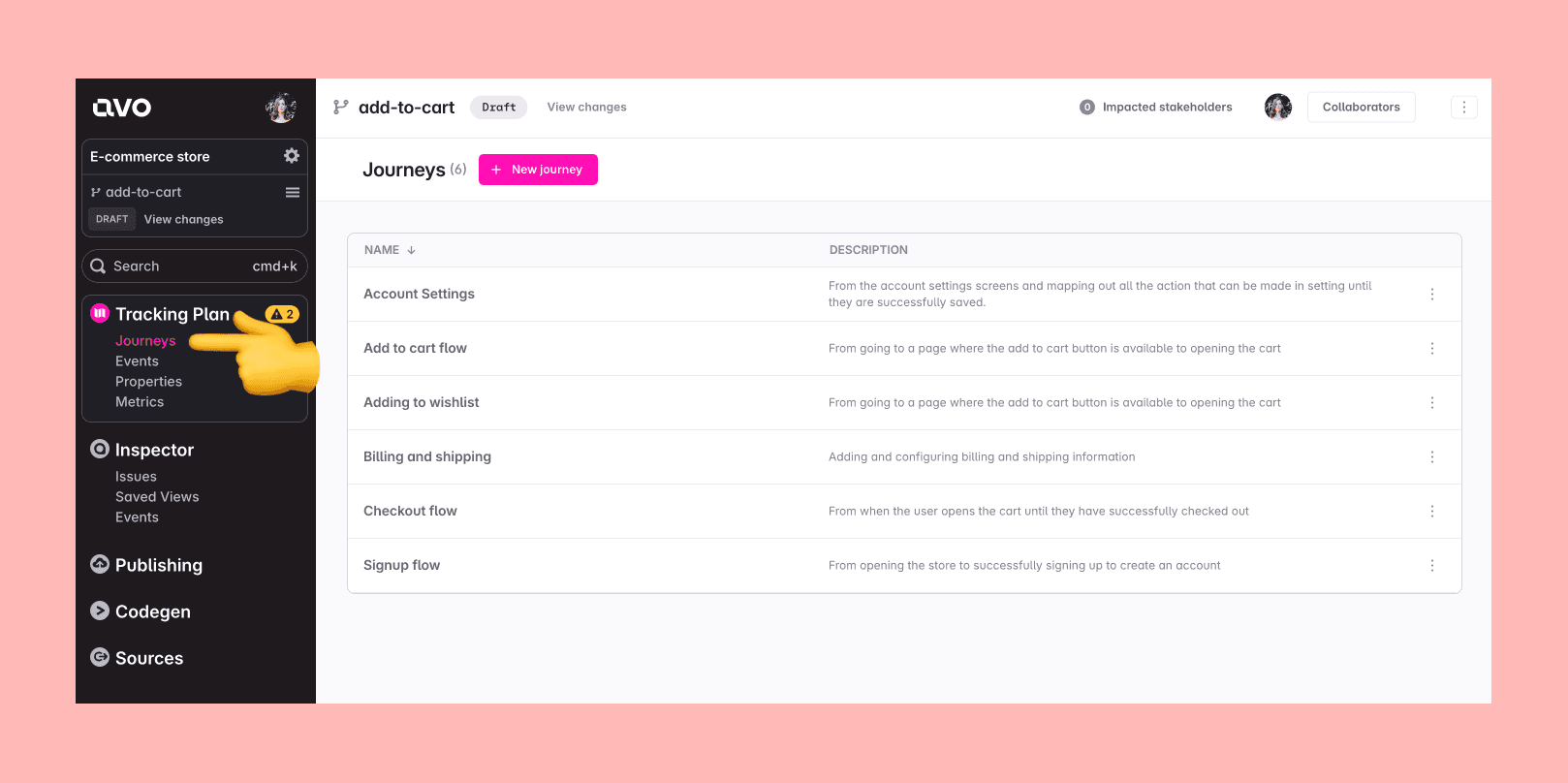
From there you can:
- Create a new journey by clicking the ”+ new Journey” button in the Journeys view
- Access an existing journey to edit, review, or use as a guideline for implementation by clicking the journey in the Journeys list
- Archive a journey by clicking the triple-dot for the journey and clicking “Archive”
- Copy the link to a journey by clicking the triple-dot for the journey and clicking “Copy link”
Journey building blocks
Journeys are composed of the following building blocks:
- Journey name: a short, human‑readable name used to identify the journey in the Journeys view and in the journey details page
- Journey description: a more detailed description of the journey and its purpose, with optional links to designs, product requirements or other relevant resources
- Journey steps: a step in the user journey visualized with an image or described in text (useful for server‑side tracking)
- Image annotations: markers on journey step images that highlight specific areas where actions occur
- Journey triggers: the navigation, system, or user action that should trigger an event
- Connections: links between steps, annotations, and triggers that drive how triggers attach to events
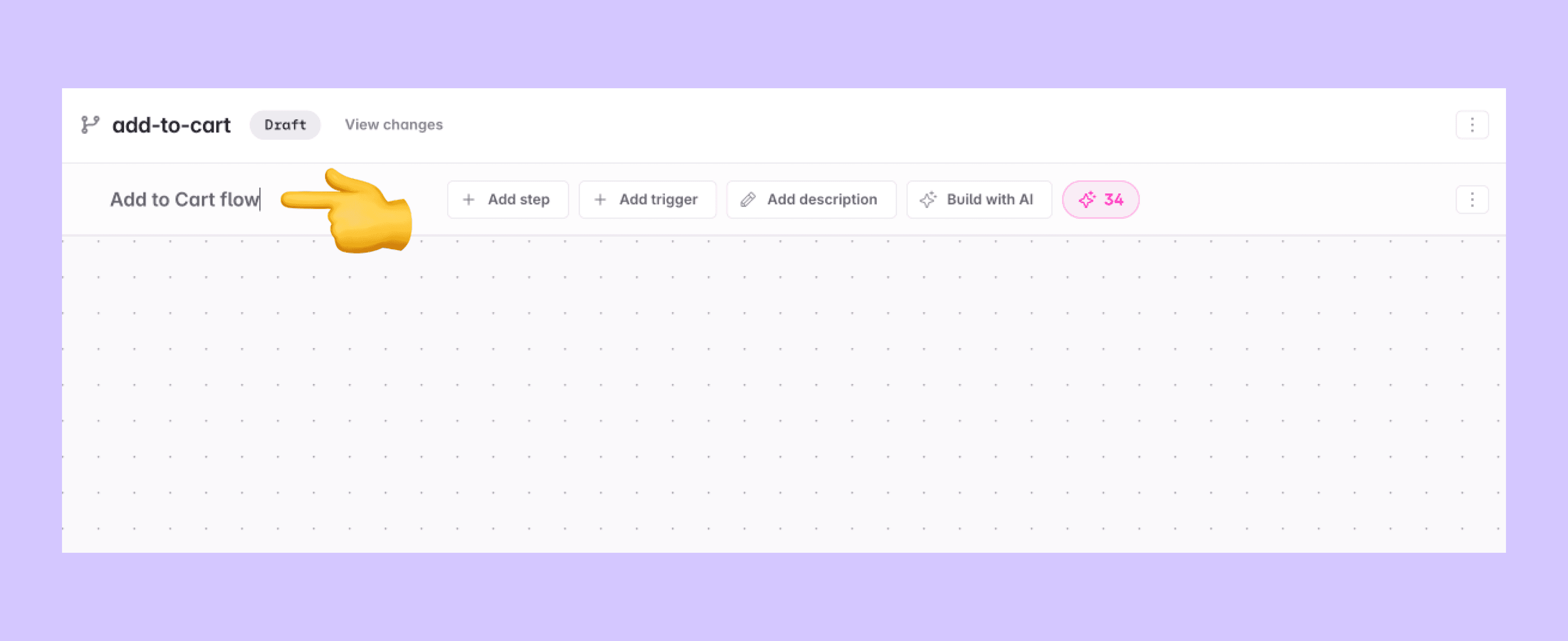
Journey name
The journey name is used to identify the journey in the Journeys view and in the journey details page. The journey name is usually a short, human‑readable description like “Checkout flow.” You can edit the journey name in the journey details page.
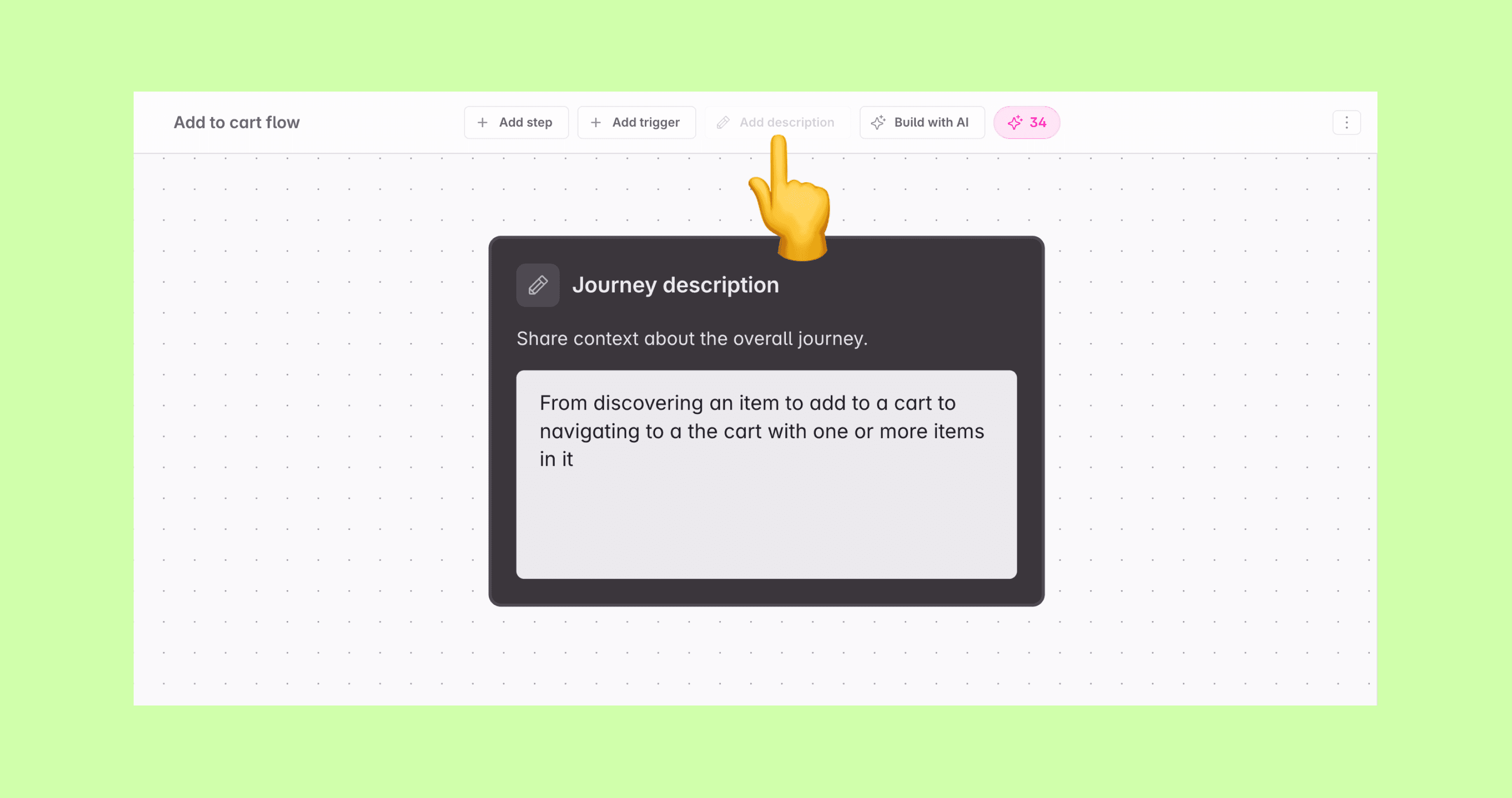
Journey description
The journey description provides additional context about the journey and its purpose, with optional links to designs, product requirements, or other relevant resources. You can edit the journey name and description in the journey details page.
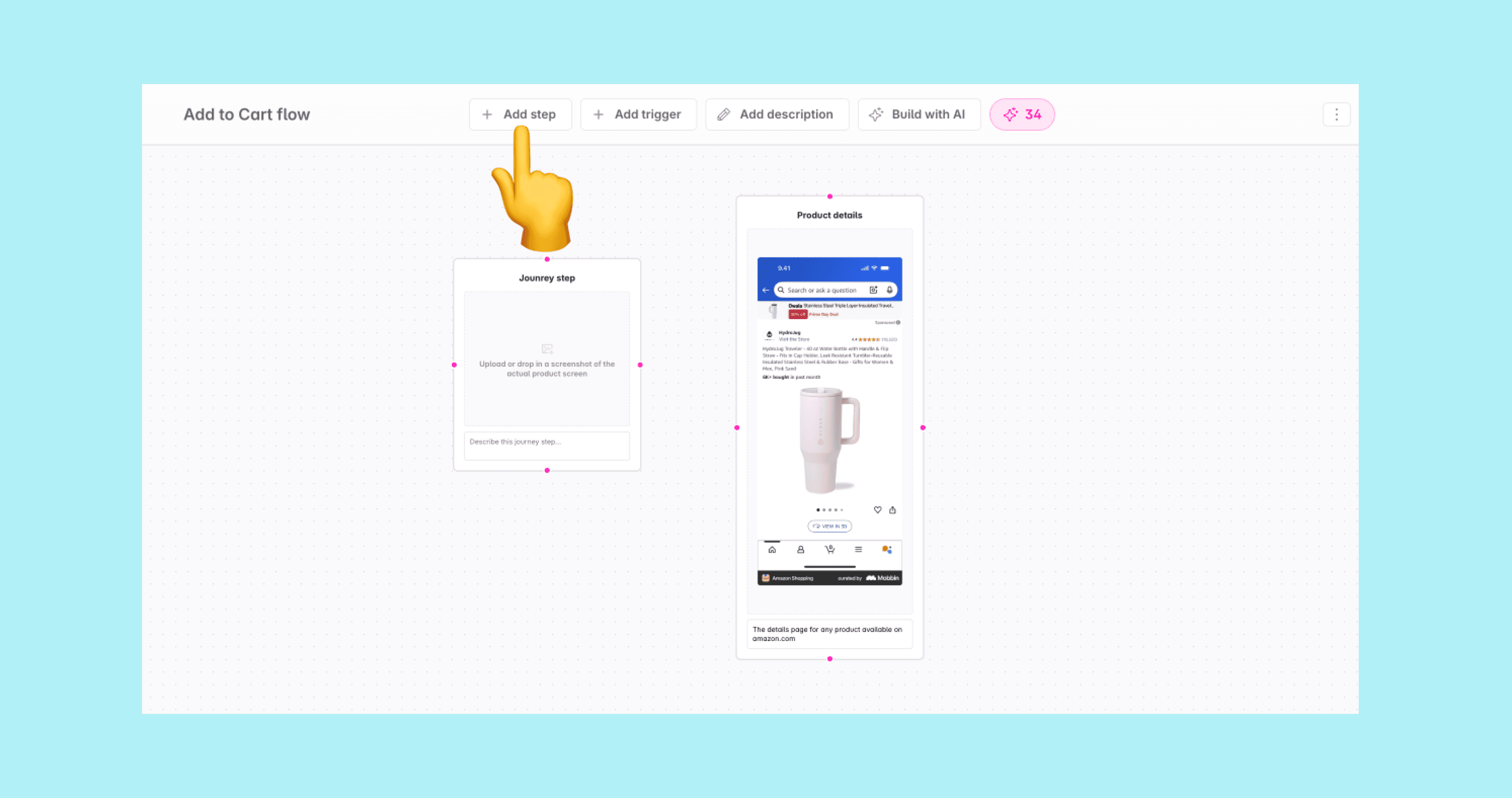
Journey steps
A journey step is a single step in a user journey that is either visualized with an image or described in text (for server-side tracking, for example).
Journey step building blocks
A journey step is composed of the following details:
- Journey step name: A name for the journey step, generally something human readable and descriptive for the image, like “Product Details”
- Journey step description: An optional description for the journey step, with context about the image and possibly links to designs or the page it represents
- An optional image: A screenshot from the product or exported designs of the screen or component that the journey step represents
- Optional annotations: Annotations on the image that highlight specific areas where actions occur
Adding journey steps
There are several ways to add a journey step to the canvas:
- Import from Figma: Import frames directly from a Figma design file to create steps with images, names, and auto-generated connections — see Importing steps from Figma
- Drag and drop images: Drag and drop one or more images directly into the journey builder to create steps with images
- Drag from toolbar: Drag the step icon from the toolbar at the top of the journey builder and drop it onto the canvas
- Step mode: Press
sto activate step mode, then click anywhere on the canvas to place a step node
To add an image to an existing journey step, you can drag and drop an image into the journey step or click the placeholder image in the journey step and select an image from your computer.
For a full walkthrough of building journeys on the canvas, see Creating a journey.
Importing steps from Figma
If your designs live in Figma, you can import frames directly into the Journey Builder instead of exporting and re-uploading them manually. Each imported frame becomes a journey step with its image and name. Steps are arranged in a grid that mirrors the spatial order of your Figma frames, and connections between adjacent frames are generated automatically.
This is particularly useful when you are starting a new journey from an existing design file and want to avoid the overhead of manually recreating each screen as a journey step and placing them to align with the flow you already have in Figma.
The Import from Figma feature is available to workspaces with the Figma integration enabled. Contact your workspace admin or Avo support if you don’t see the option.
How to import frames from Figma
To import frames into Avo from Figma, follow these steps:
1: Open a journey in the Journey Builder.
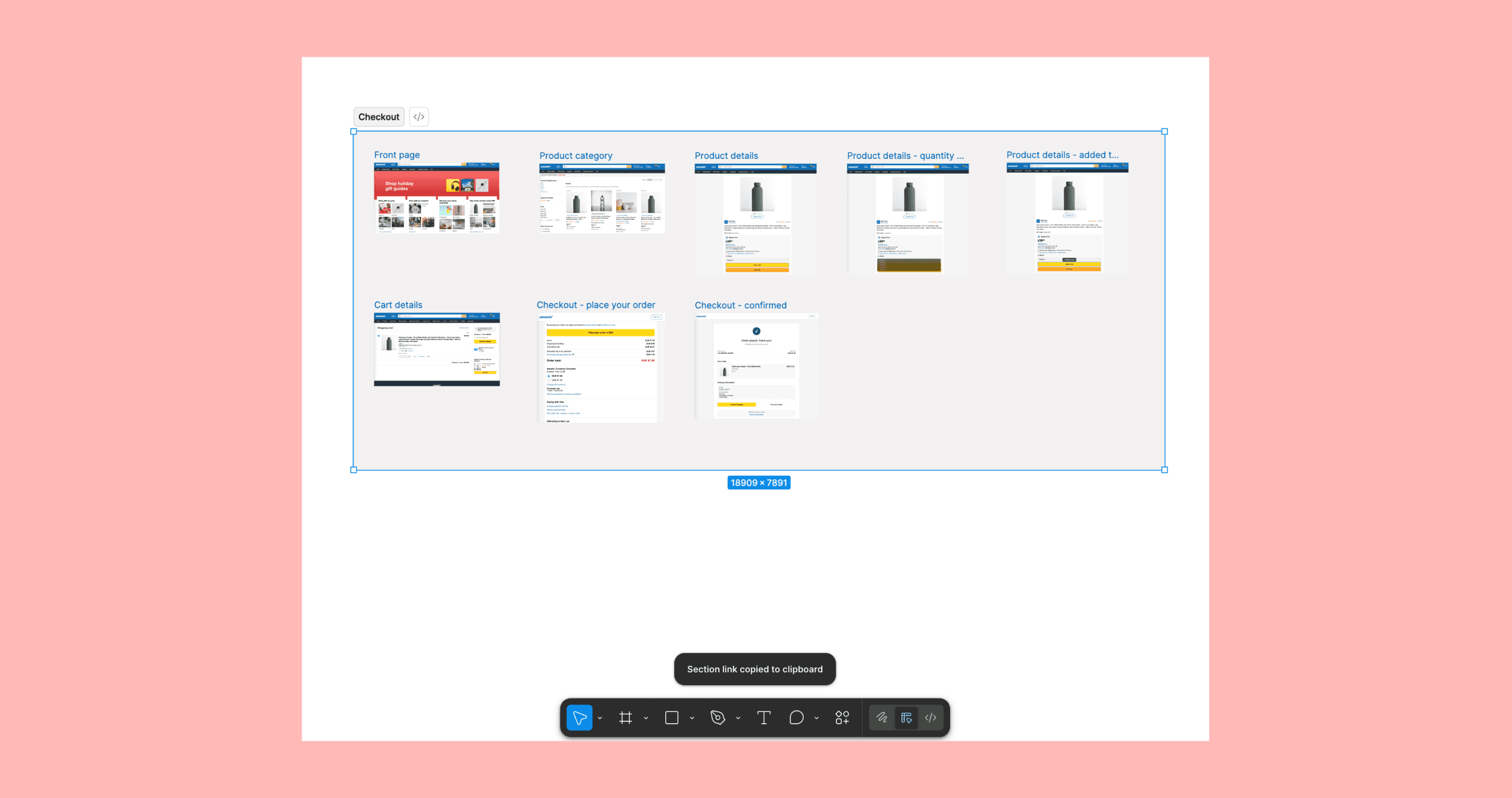
2: Copy the link from Figma.
In Figma, copy the link to what you want to import — a whole file, a section, or a single frame:
- Whole file: Click Share in the top-right corner of Figma and copy the link
- Section or frame: Select it, then press
Cmd+L(Mac) /Ctrl+L(Windows), or right-click and choose Copy link to section / Copy link to frame
3: Paste the link into your Avo journey.
Paste it into the canvas. Imported steps are always placed to the right of any existing content to avoid overlaps.
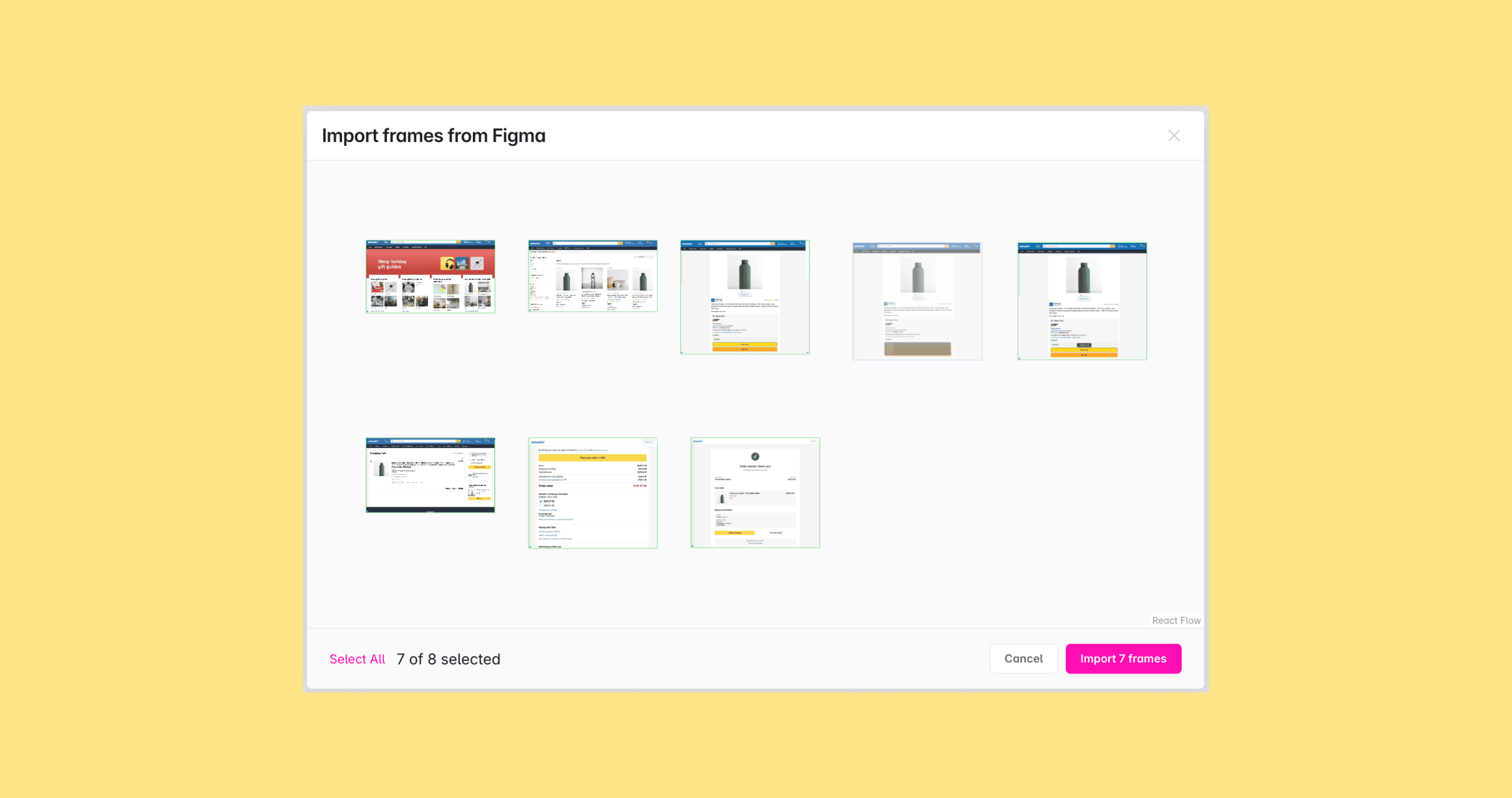
4: Select exactly which frames you want to import.
Avo retrieves the file metadata from Figma and displays a visual frame picker showing all top-level frames available in the file or section that was selected. You can multiselect individual frames, drag across frames or use select-all.
5: Click “Import”.
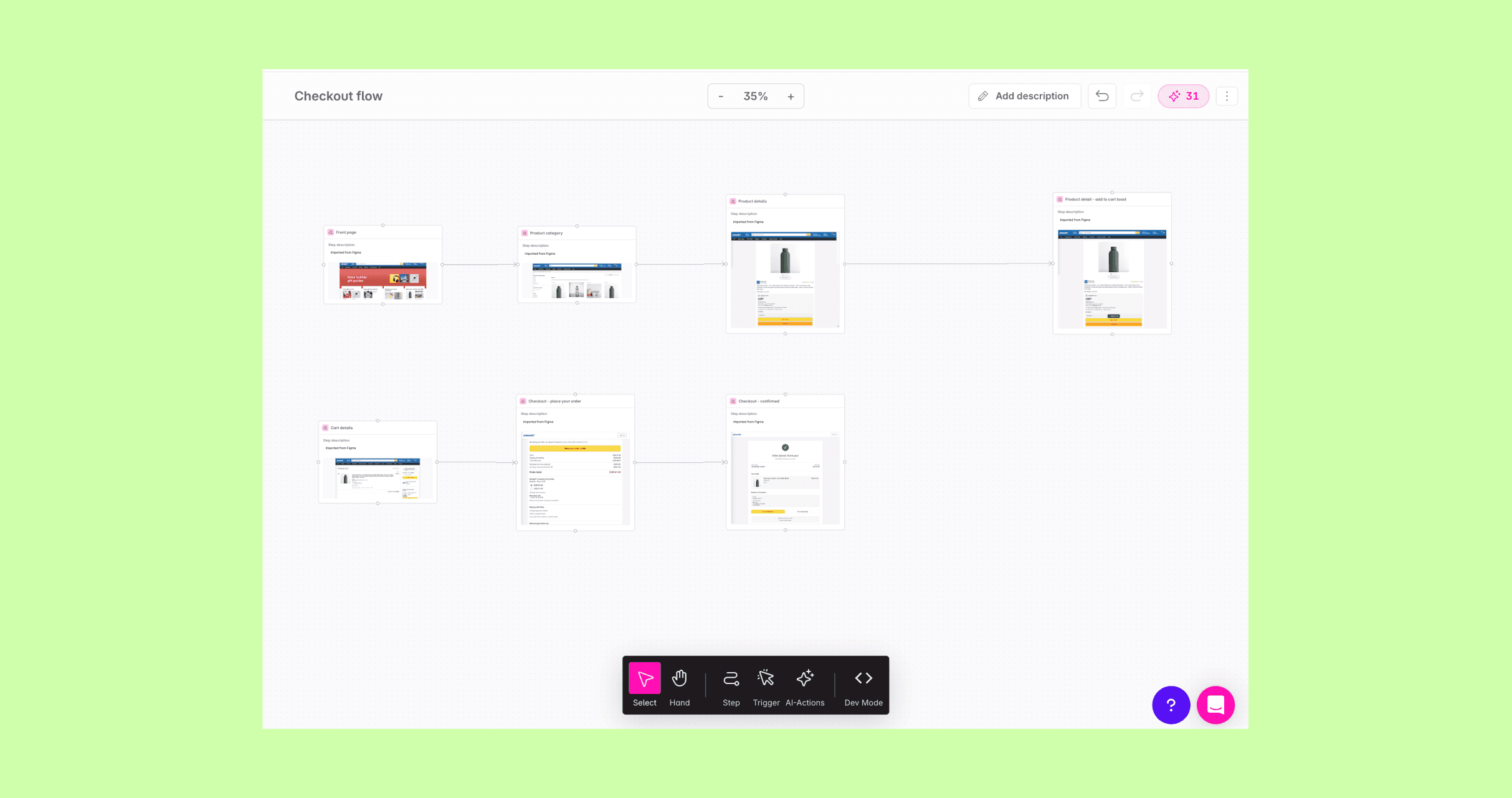
Avo downloads each selected frame as an image, uploads it, and creates a journey step for each one.
What gets created
For each imported frame, Avo creates a journey step with:
- Image: A screenshot of the Figma frame
- Title: The frame’s name from Figma (e.g. “Checkout – Payment”)
- Figma source link: A reference back to the source Figma file and node, so anyone viewing the step can trace it to the original design and easily refresh the journey step in Avo when the designs have changed in Figma
Steps are arranged in a grid layout that mirrors the spatial order of the frames in the Figma file. If the journey already contains steps, new steps are placed to the right of existing content to avoid overlaps.
Frames that were spatially close to each other in the Figma layout — specifically those in the same horizontal row — are automatically connected with edges when imported. This preserves the left-to-right visual flow of your Figma design without manual wiring.
You can add, remove, or adjust connections after import just like any other journey step connection. See Connections for details.
Recommended Figma seat type
Avo reads Figma files on your behalf using the OAuth token from the connected Figma account. Figma applies rate limits to its REST API per seat type — Dev and Full seats get the highest monthly and per-minute quotas, while View and Collab seats share a much smaller monthly quota and are the first to be throttled. For a smooth import experience, connect a Figma account that has a Dev or Full seat.
If you hit Figma’s monthly API quota, Avo surfaces a toast suggesting you reconnect using a Dev or Full seat account. Disconnect the current Figma integration from Workspace Settings → Integrations, then connect with a different Figma account.
Troubleshooting
- “Invalid URL” error: Make sure you copied the link from a Figma design file using one of the methods above — Share button,
Cmd/Ctrl+L, or right-click. Links from Figma’s prototype view, inspect panel, or FigJam boards are not supported. - No frames appear in the picker: The selected node may be a component or group rather than a frame or page. Try copying the link from a higher-level frame or page in the Figma file.
- “Could not access file”: Avo can only access files shared with link access. In Figma, click Share and set access to Anyone with the link, then try again.
Journey triggers
Journey triggers represent the navigation, system, or user action on a journey step that triggers the event to be sent. One journey step can be connected to one or more triggers and one trigger can have one or more journey steps connected to it. Triggers are connected to events in your tracking plan.
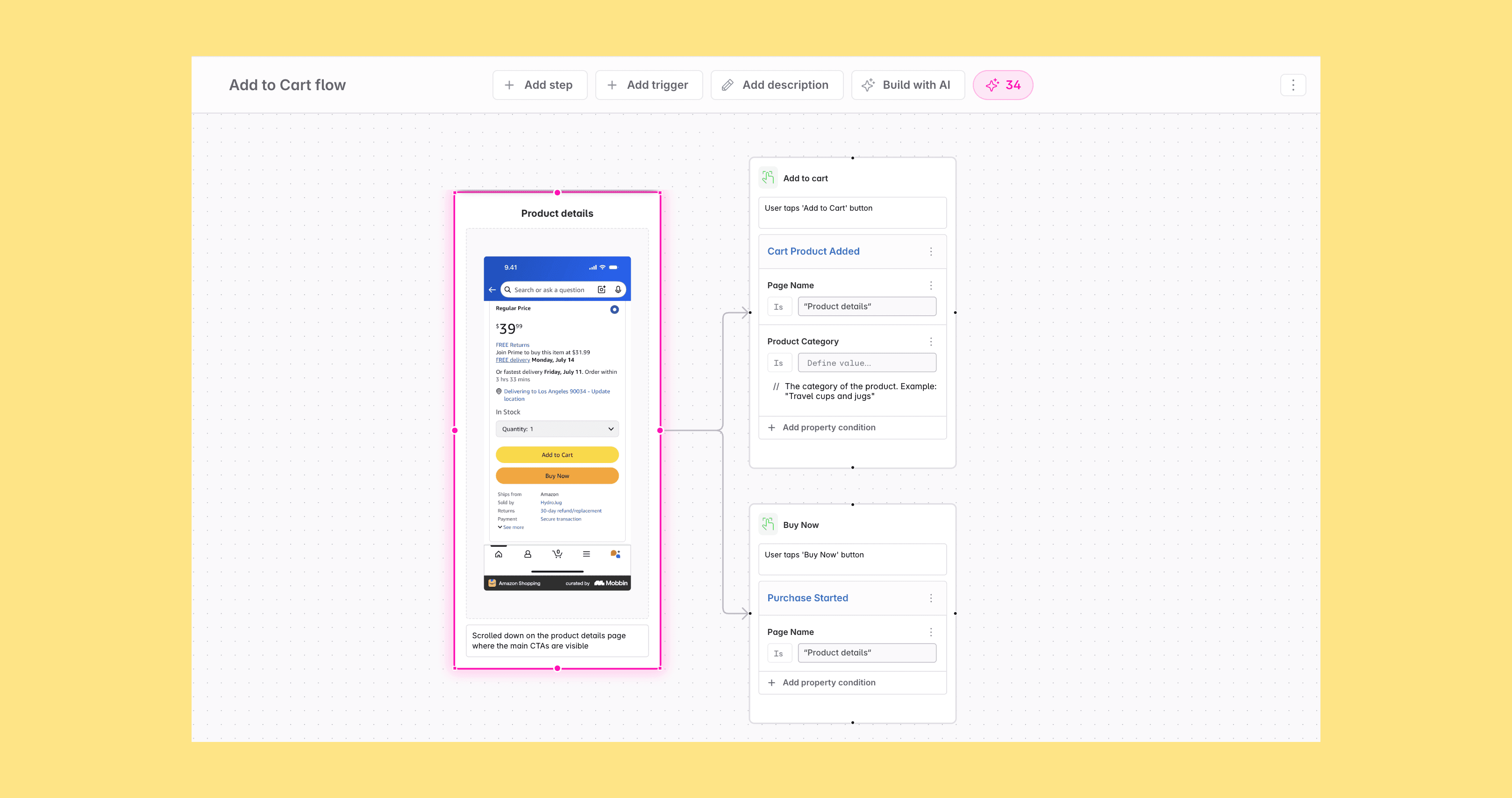
Journey triggers are the same as event triggers except they also connect to journeys, not only events and variants. Journey triggers can have more than one image attached to a single trigger, while event triggers attach to a single image. See more in Triggers and use cases.
Journey trigger building blocks
A journey trigger is composed of the following:
- Journey trigger name: Generally something human readable and descriptive for the related action, referring to the image from the journey step, like “Clicked Add to Cart”
- Journey trigger description: A description of the action, referring to the image from the journey step, like “User clicked the add to cart button on the product details page to add a product to their cart”
- Journey trigger image: An optional image from the connected journey step(s) that represent the action, like a screenshot of the screen where the button was clicked
- Event: The event or event variant that is triggered by the action described by the trigger
- Property condition: an optional condition for each event connected to the trigger, highlighting the properties that are important or have specific values that should be sent in that scenario
The journey trigger is automatically added to the event details, with the image from the journey step.
AI agents connected through the Avo MCP see this context too: looking up an event returns each of its triggers with the screen, the connected event, and the property conditions. See Trigger context on events. Agents can also read the journey itself: search lists the journeys on a branch and get walks one screen by screen, with the triggers, connected events, and property conditions on each. See Journey graph.
Adding journey triggers
There are several ways to add a journey trigger:
- Drag from toolbar: Drag the trigger icon from the toolbar at the top of the journey builder and drop it onto the canvas
- Trigger mode: Press
tto activate trigger mode, then click anywhere on the canvas to place a trigger node - Drag from handle: Drag from a journey step handle or annotation handle and release on the canvas to drop a new trigger that is automatically connected
- Placeholder trigger: For the first trigger on each journey step, a placeholder trigger is shown where you can choose to generate a trigger with AI or add one manually
- AI generation: Use the AI menu above a journey step or in the journey toolbar to generate triggers
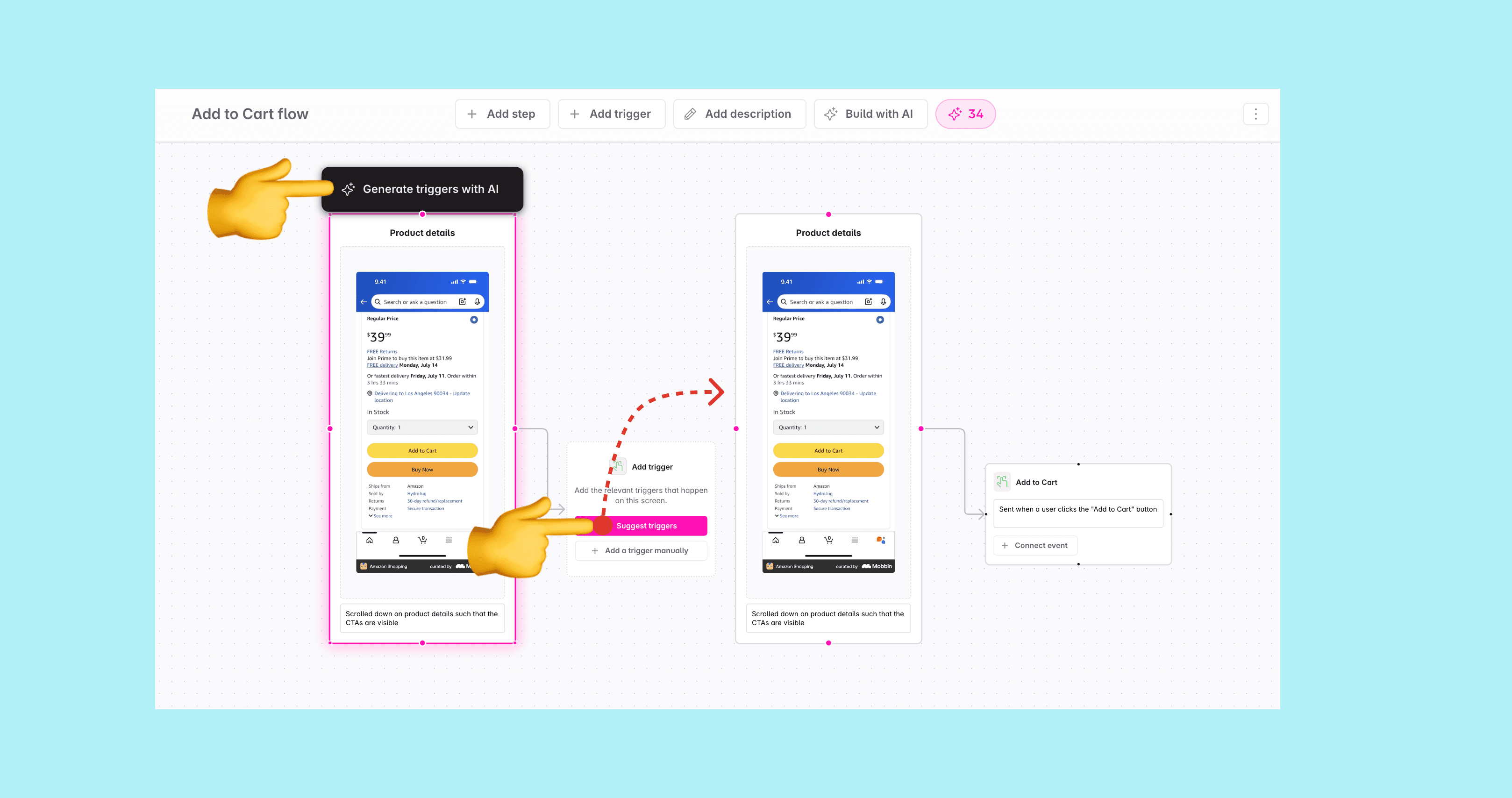
For a full walkthrough of building journeys on the canvas, see Creating a journey. Learn more about pricing for AI actions in Agentic data design.
Journey trigger property conditions
A journey trigger property condition is an optional condition for each event or event variant connected to the trigger, highlighting the properties that are important or have specific values that should be sent in that scenario.
Property condition building blocks
A property condition is composed of the following details:
- Property: The property that the condition is for
- Operator: The operator defining the condition that the property should meet
- Value: The value that the property should meet in this trigger for this journey step
- Property condition note: An optional note for the property condition, with context about the property and the condition
Properties in property conditions
For each event or variant in a trigger, you can add properties to define the property condition. When you click “Add property condition” in the journey trigger details you get a list of the following options:
- Existing properties on the event: That means you pick a property from the list of properties that have already been added to the event or variant to highlight and add a condition for it
- Existing properties not yet added to the event: That means you pick a property from the list of properties in the tracking plan that have not yet been added to the event or variant and add it to the event or variant
- New properties: That means you can create a new property to both the tracking plan and the event or variant
Nested property conditions
Property conditions also support nested properties — properties inside object-type properties. For example, an Add to Cart event might have an object-type property called Product, which contains a nested object property Characteristics with child properties like Color, Size, and Brand. You can add conditions to any of these nested properties.
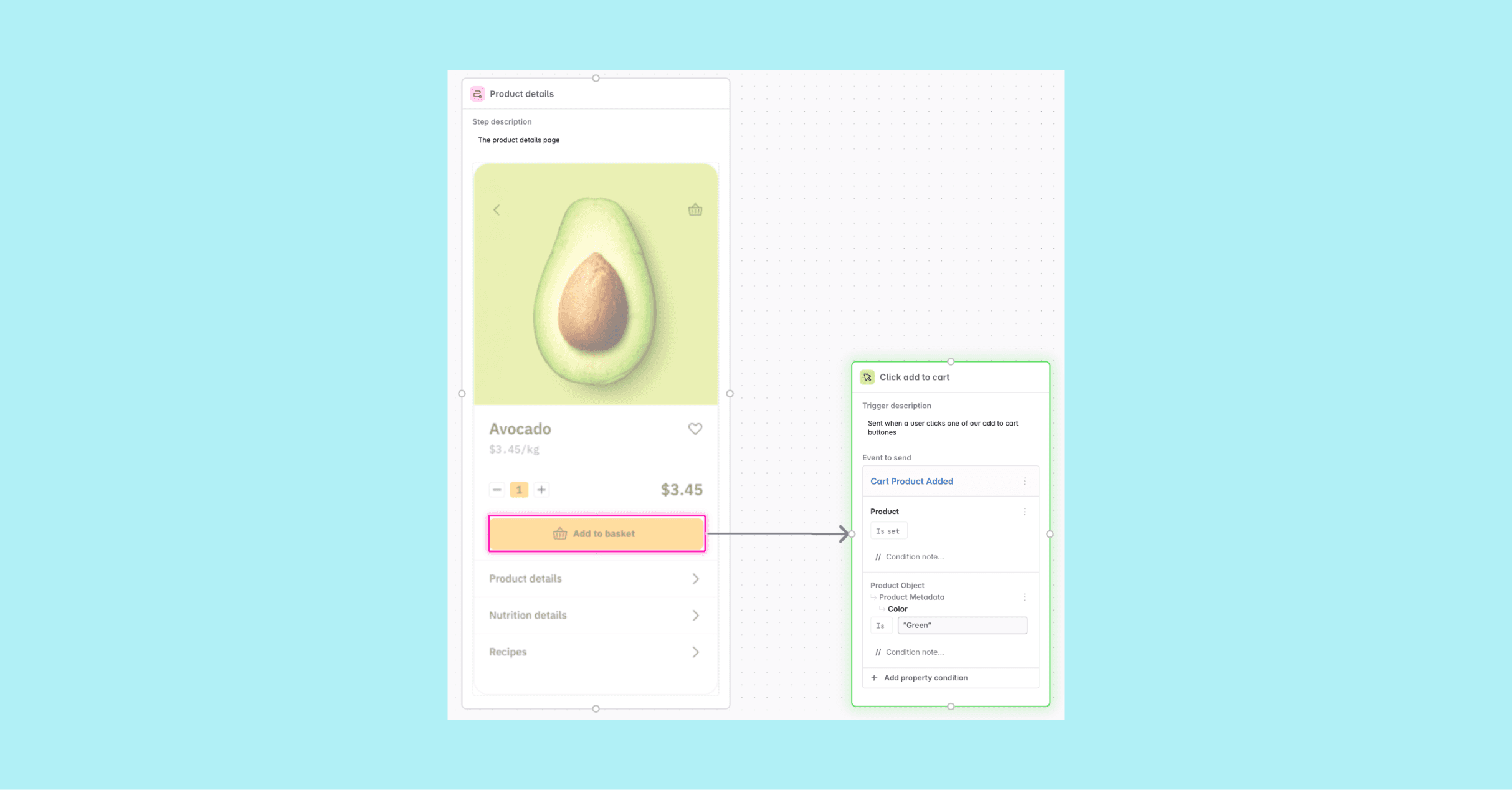
In the property condition picker, object-type properties are included just like other properties. You can search for the name of the child property that you want to add a condition for, see which parent property or properties it belongs to, and add a condition for it. The nested property path is displayed in the condition to show the full hierarchy.
All four condition operators work on nested properties: is, is not, is set, and is not set.
Conditions on nested properties work independently from conditions on their parent properties — you can set conditions on both a parent object property and its nested children. Pinned values from parent properties are respected when resolving available values for nested properties.
Property condition operators
Available operators for string and boolean properties are:
- is: The property value should be equal to the value(s) specified
- If (not set) is selected and the property is sometimes sent, then the property continues being sometimes sent. If it should have a value, then it’s one of the specified ones.
- If (not set) is deselected, then the property is always sent and must have a value.
- is not: The property value should not be equal to the value(s) specified
- If (not set) is selected and the property is sometimes sent, then the property continues being sometimes sent. If it should have a value, then it’s not one of the specified ones.
- If (not set) is deselected, then the property is always sent and must have a value.
Available operators for all property types are:
- is set: The property is always sent on the event and must have a value.
- is not set: The property is not allowed on the event and should not have a value. Only available for sometimes sent properties.
Property condition values
You can specify a value for the property condition for string and boolean properties when using the “is” or “is not” operators. When there are allowed values defined for the property, you can pick one of the current allowed values or create a new allowed value. If a new value is created, it will be added to the property as an allowed value.
When there are no allowed values defined for the string property, you can enter a custom value. If a new value is entered, it will only be used for the property condition and not added to the property as an allowed value.
Property condition notes
Click the three dots next to the property name to add an optional note for the property condition. You can for example add an example value, a pattern the value should match or document a variable the condition should reference.
This is useful to provide additional context for tracking plan viewers and implementers about the property and the condition.
Adding property conditions
To add a property condition to a journey trigger:
- Click the “Add Property Condition” button in the journey trigger node in the journey builder or journey trigger details.
- Select the property or nested object property you want to add a condition for
- Select the operator you want to use for the condition
- If applicable, enter the value you want to use for the condition
- Add an optional note for the property condition
For a full walkthrough of building journeys on the canvas, see Creating a journey.
Image annotations
Image annotations allow you to mark specific areas within a journey step image and connect those annotations directly to triggers. This is useful when you want to precisely indicate where in the UI a trigger occurs.
Activating trigger mode
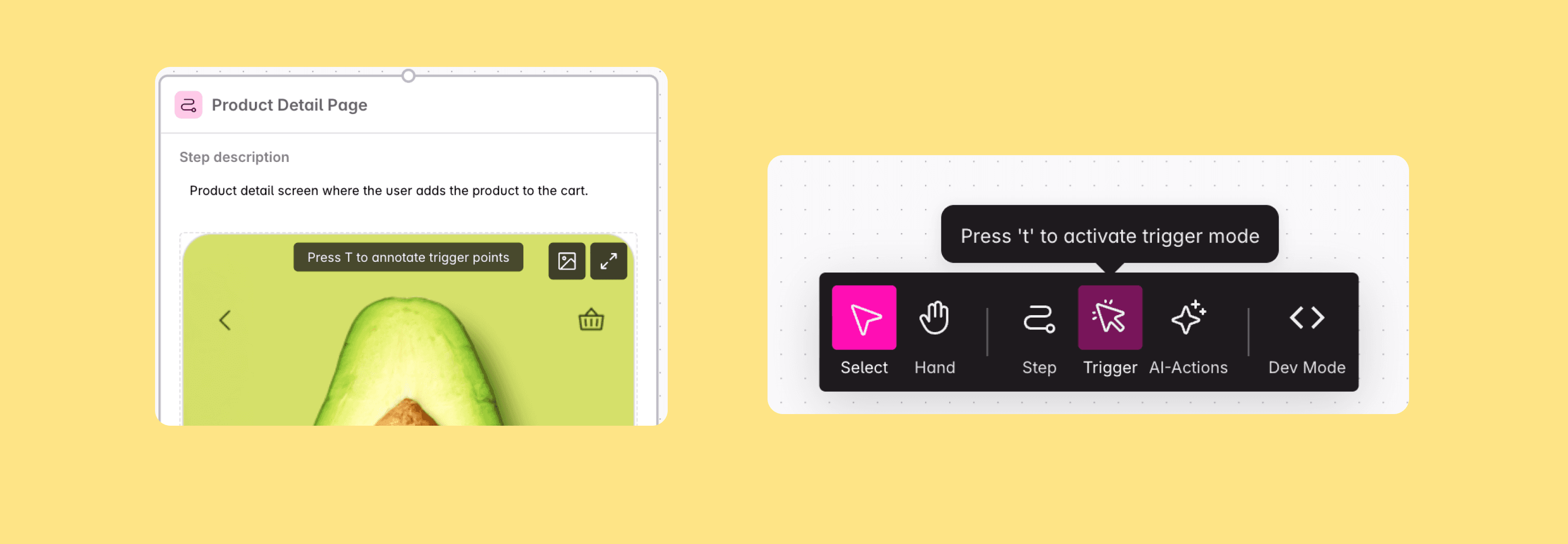
To annotate images, activate trigger mode by pressing t on your keyboard. When trigger mode is active:
- Hovering over an image: A crosshair cursor appears, allowing you to create annotations
- Over the journey builder grid: You can drop a trigger node directly onto the canvas
Creating annotations
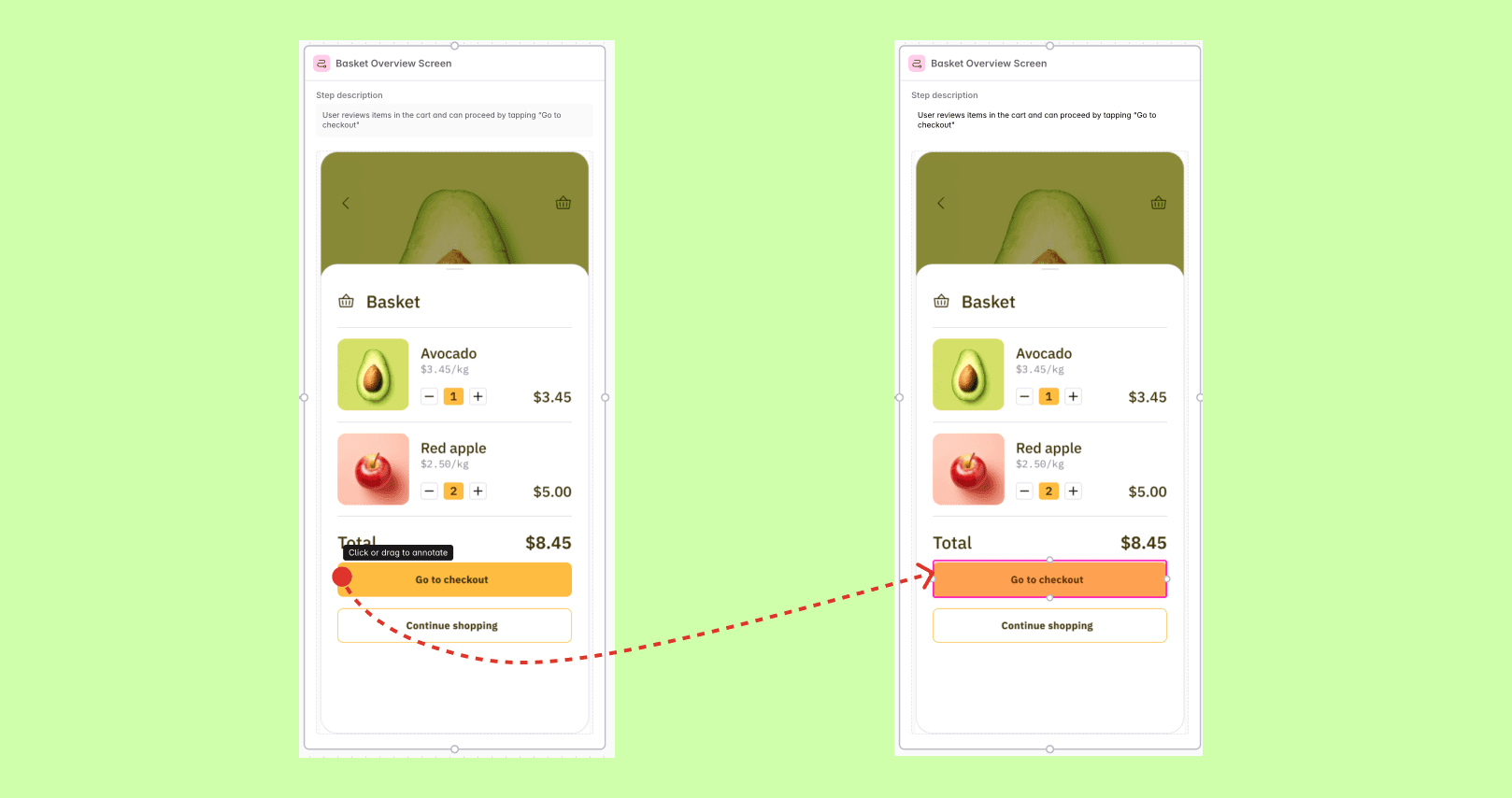
There are two types of annotations you can create:
-
Dot annotation (click): Click on the image to create a dot annotation. The dot can be connected from its right side. This is useful when annotating small elements like buttons or icons.
-
Rectangle annotation (click and drag): Click and drag on the image to create a rectangle annotation. The rectangle can be resized and connected from any side. This is useful when annotating larger areas like carousels, swimlanes, or content sections.
Nested annotations
You can add annotations within other annotations. For example, if you have a swimlane that can be swiped, you can create a rectangle annotation around the entire swimlane and then add dot annotations for individual cards inside the swimlane. This allows you to represent both the container-level interaction (swiping the swimlane) and the item-level interactions (tapping individual cards).
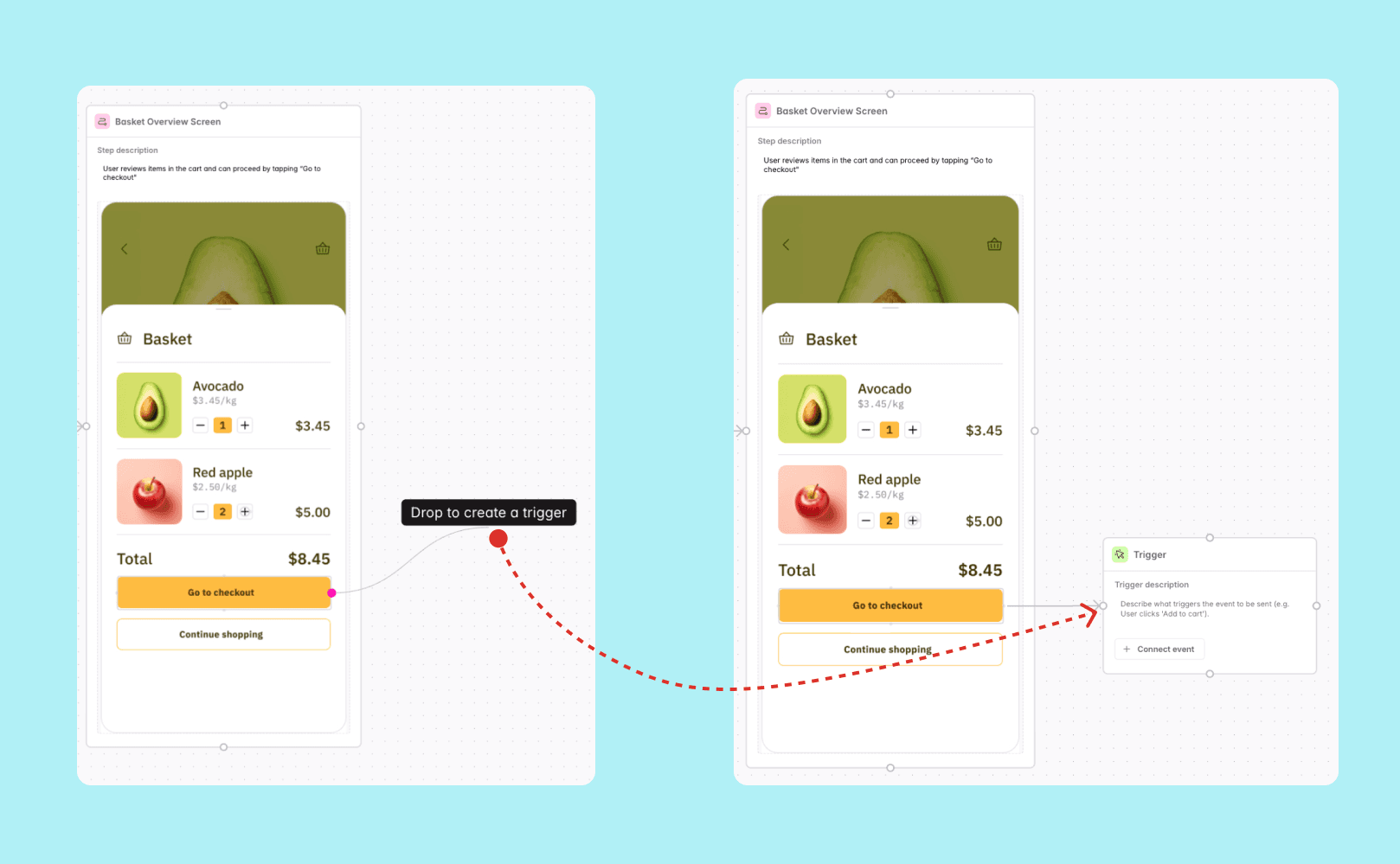
Creating triggers from annotations
There are two ways to create triggers from annotations:
-
Drag from annotation handle: Drag from an annotation handle and release over the journey builder grid to drop a new trigger node. The trigger will automatically be connected to the annotation.
-
Connect to an existing trigger: Click any handle on the annotation and drag it to the handle on any side of an existing trigger.
Connections
Connections link a journey step to a journey trigger. There are two ways to connect journey steps and triggers:
-
From journey step edge to trigger edge: Click the handle on either side of the journey step and drag it to a handle on either side of the trigger. This connects the entire journey step image to the trigger.
-
From image annotation to trigger edge: Add an annotation to a specific area of the journey step image, then connect the annotation handle to a trigger. This is useful when you want to highlight exactly where in the image the action occurs.
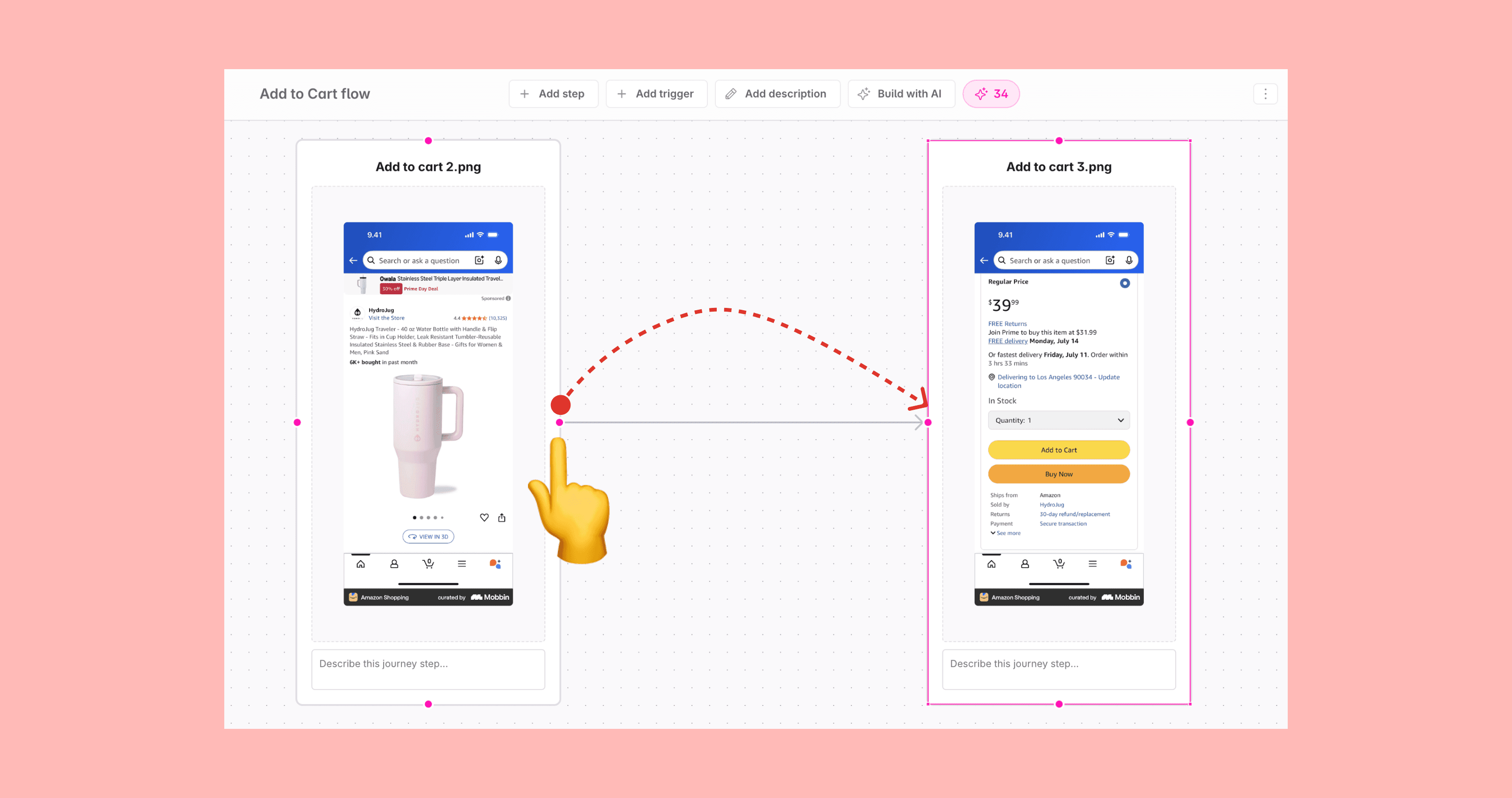
When a journey step and a trigger are connected (either directly or via an annotation), the trigger is associated with the event or variant linked to the journey step. The trigger will be attached to the event in the event details, including the image from the journey step and the trigger name, description, and property conditions from the trigger.
The following connections are possible:
- A connection from a journey step or annotation to a trigger means that the image from the journey step will be added to the trigger details
- A connection from a journey step or annotation to another journey step is purely visual and does not connect the journey step to the event or variant connected to the journey step. Helpful to visualize how a user flows through the journey and to get relevant triggers for each journey step based on the next step in the journey.
- A connection from a trigger to a journey step or annotation is purely visual and does not connect the trigger to the event or variant connected to the journey step. Helpful to describe what user action will lead to the next journey step.
- A connection from a trigger to another trigger means that the first trigger will be attached to the connected journey step and the following triggers will have no image attached to them.
Connections help the AI to generate relevant triggers for each journey step based on the subsequent journey step(s). See more about generating triggers with AI and cost in the Agentic data design documentation.
Creating and editing journeys
Journeys can be created and edited in the Journeys view, accessed by navigating to Journeys in the left sidebar.
Creating a journey
To create a journey, click the “Create Journey” button in the Journeys view. This opens the journey builder—a canvas with a toolbar at the top. Add nodes for journey steps and triggers by dragging from the toolbar, using keyboard shortcuts (s for steps, t for triggers), or dragging from handles. Each node has a name and description field and a context menu with AI options to help you build and add details to the journey.
There are many possible ways to build journeys and there is no one-size-fits-all solution. But the following workflow is common and recommended:
- Add a name and description for the journey
- Add journey steps to the canvas using Import from Figma to pull frames directly from a design file, or by dragging and dropping images, dragging from the toolbar, or pressing
sto activate step mode - Order the steps to visualize the user journey and connect them to each other so AI can generate relevant triggers for each step
- Fill in the details for each journey step, one-by-one:
- Add a name and description for the journey step
- If you are going to add an image and didn’t drag-and-drop directly into the canvas, add one by clicking the placeholder image or drag-and-drop an image from your computer
- Add annotations to highlight specific areas of the image—press
tto activate trigger mode, then click for dots or click and drag for rectangles
- Add triggers for each user action. You can:
- Drag from an annotation or journey step handle to create a connected trigger
- Use the placeholder trigger to generate with AI or add manually
- Press
tand click on the canvas, or drag from the toolbar
- Fill in the details for each trigger, one-by-one:
- Add a name and description for the trigger
- Connect the trigger to an event or event variant, either using the AI menu or manually using the “Connect event/variant” button
- Add property conditions to highlight properties that are important or have specific values for that scenario
All edits are saved automatically as you make them. Once you are done, we recommend getting a review from your teammates and any impacted stakeholders. The Journeys view is also a great place to review and use as a guideline for implementation.
Editing a journey
To edit a journey, you can select a journey in the journeys overview and that opens the journey builder with that journey.
There you can edit all the details of the journey, including the name and description, the journey steps and triggers, and the connections between them.
All edits are saved automatically as you make them. Once you are done, we recommend getting a review from your teammates and any impacted stakeholders. There is a “View changes” button in the journey builder that opens a tracking plan changes slide-over that shows the changes you made to the journey. The journey visualizes the current state of the journey after the changes made.
Keyboard actions
The journey builder supports keyboard shortcuts to speed up your workflow:
| Action | Mac | Windows |
|---|---|---|
| Activate step mode | S | S |
| Activate trigger mode | T | T |
| Copy selected step(s) or trigger(s) | ⌘ + C | Ctrl + C |
| Paste step(s) or trigger(s) | ⌘ + V | Ctrl + V |
| Undo | ⌘ + Z | Ctrl + Z |
| Redo | ⌘ + Shift + Z | Ctrl + Shift + Z |
Step mode activates step mode. When active, a ghost step node is shown with your cursor and you can click anywhere on the grid to drop it. To exit step mode, press esc
Trigger mode activates annotation capabilities. When active, hover over an image to see a crosshair cursor for creating annotations, or hover over the canvas to drop trigger nodes. Press esc to exit trigger mode.
Copy and paste works for both journey steps and triggers, one at a time. Select a journey step or trigger node on the canvas, copy it, move your cursor to the desired location and paste to duplicate. This is useful when you need to create similar steps or triggers across your journey.
Undo and redo let you quickly reverse or reapply changes as you build your journey, making it easy to experiment with different layouts and configurations. Undo is available for adding, moving and removing nodes (journey steps and triggers) and connections between them.
Deleting a journey
To delete a journey, you can click the triple-dot for the journey in the journeys overview and click the “Delete” button.
Reviewing and implementing journeys
Reviewing journeys
When reviewing tracking plan changes made in a new or updated journey, we recommend using the journey builder as a visual guide. The journey builder shows the current state of the journey after the changes and the tracking plan changes screen show the changes made to the journey. We recommend first reviewing the journey in the journey builder and then reviewing the changes in the tracking plan changes screen to have the whole context when reviewing the changes.
Implementing journeys
The best way to implement journeys is to use Developer mode. Developer mode can be accessed through the toolbar in the journey builder and provides everything developers need to implement tracking directly from the journey context.
Developer mode opens a sidebar with a list of all triggers for each journey step in the journey. Every trigger includes auto-generated code snippets and prompts for coding agents, tailored to the property conditions defined for that scenario. Developers get:
- Context from the design: Journey step images with annotations showing exactly where each action occurs, connected to triggers and events
- Code snippets based on property conditions: Clear indication of which properties must be sent and which are optional, plus allowed values and notes about the property or the value
- Implementation prompts: Language-specific prompts for coding agents to help implement the tracking plan changes, for either Codegen or existing implementation methods
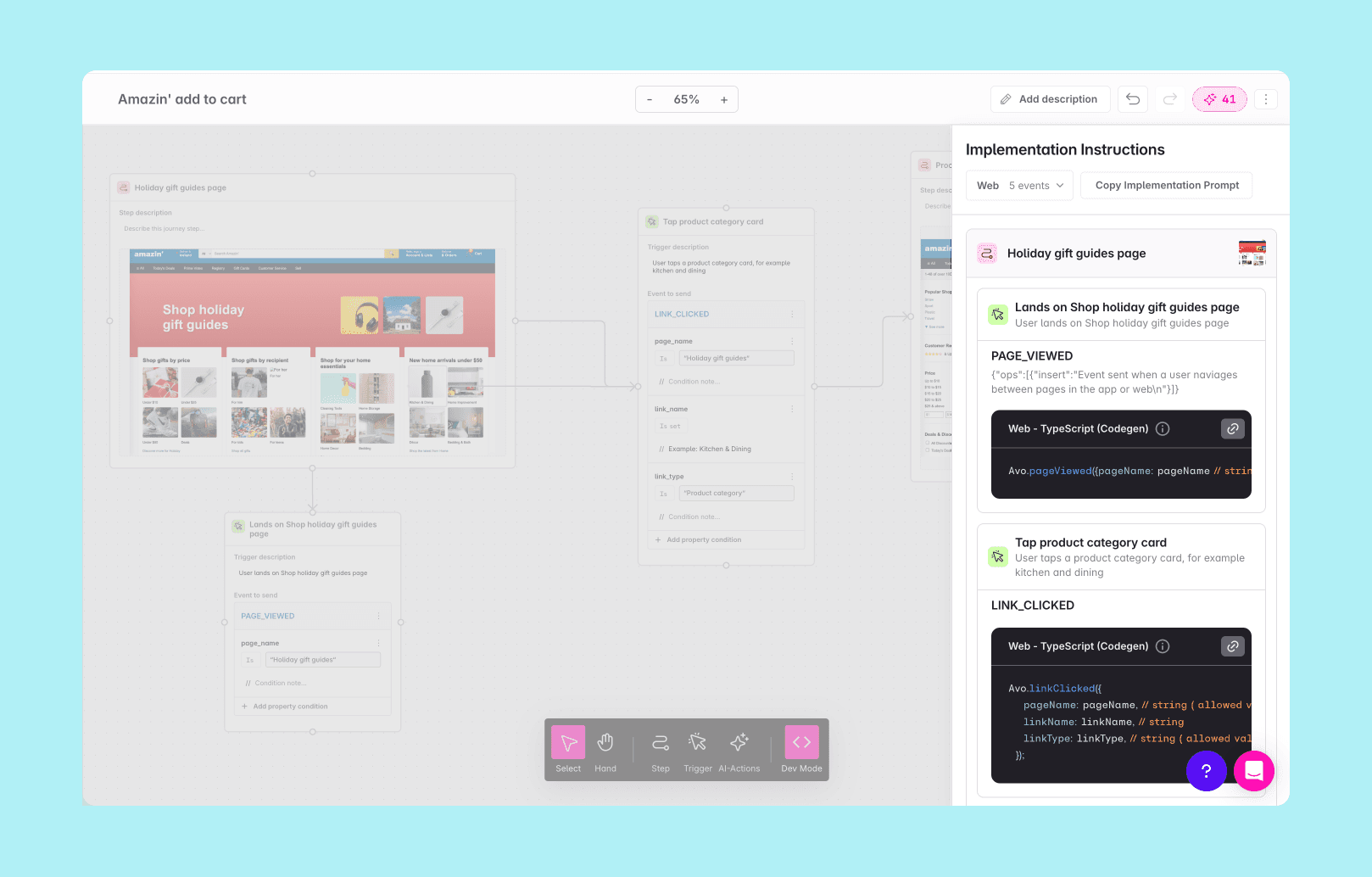
Use Developer mode together with the Branch Code Changes screen for a complete implementation workflow. For more details on the implementation process, see Implement analytics events.
How code snippets reflect property conditions
The code snippets in Developer mode are customized based on the property conditions defined for each trigger. Property conditions are represented in the comment for each property in the generated code:
- Property condition notes: Any notes added to a property condition are appended to the end of the property’s comment
- Narrowed allowed values: If a property condition specifies a subset of allowed values from the full list defined on the property, the code snippet only shows the values defined in the property condition
- Condition-specific values: If a property condition defines an allowed value but the property itself has no allowed values defined, that value is shown in the comment for context but is not added to the property definition
- Optional properties set to “is set”: The property is required in this context, even if it’s optional on the event definition and the comment will state that the property should be set
- Optional properties set to “is not set”: The property should not be set in this context and the comment will state that the property should not be set
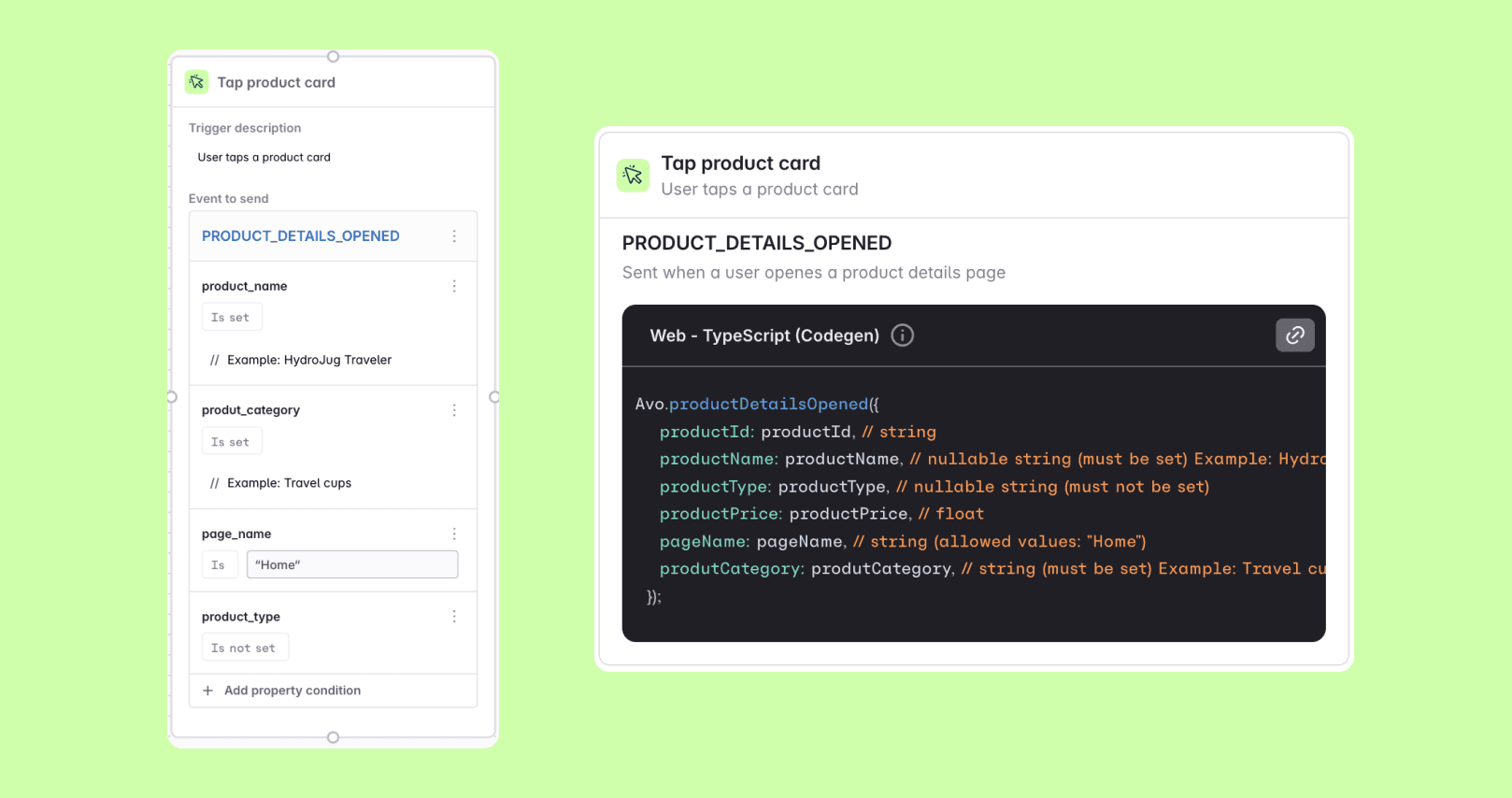
This ensures that developers see exactly what’s expected for each specific trigger scenario, rather than the full event definition.
Approaches to building journeys
There are many possible ways to build journeys and there is no one-size-fits-all solution. Below are some common journey structures for inspiration.
Journey steps connected with triggers below each step
In this approach, journey steps are connected with each other to visualize the user journey. Triggers are then connected below each step shown as metadata outside of the flow itself.
Triggers used between journey steps to define branched journeys
In this approach, triggers are used between journey steps to define branched journeys. This is useful when there are multiple paths a user can take in the journey and you want to visualize and communicate all scenarios. Here, only the connections that go from a journey step to a trigger indicate that the image applies to the trigger. Connections that go from a trigger to a journey step are purely visual and do not connect the trigger to the event or event variant associated with the journey step.
Triggers connected internally between journey steps
In this approach, triggers are connected internally between journey steps to define the order of actions that happen in a step. This is useful when there are multiple actions within a step and you want to visualize and communicate their sequence. For example, to communicate that a user lands on the page, then selects from options before confirming the selection.
Avo is the analytics governance platform for product data that lets you define it consistently, implement it correctly and trust it everywhere. Using an AI agent? Connect it to the Avo MCP at https://mcp.avo.app/mcp and it can read and change your tracking plan on a branch.