Send data from Segment to Avo Inspector
Use Avo Inspector as a Segment destination
Stream your event schemas from Segment to Avo Inspector without adding any code to your codebase. Simply set up a Segment native destination powered by Segment actions and your data should be visible in Avo within a couple of seconds (in rare cases it can take up to 2 minutes).
Inspector only receives your event schema, no actual data will be sent to Avo.
Remember that production data takes up to 2 hours to appear in Inspector dashboard, while development data is available without any delay.
You will need to create a connection between your source and the destination
for each environment you use (Development | Staging | Production).
Step 1. Create or select an Avo source to set up Inspector
A source in Avo is a code base where events are tracked, for example your website, mobile application or server.
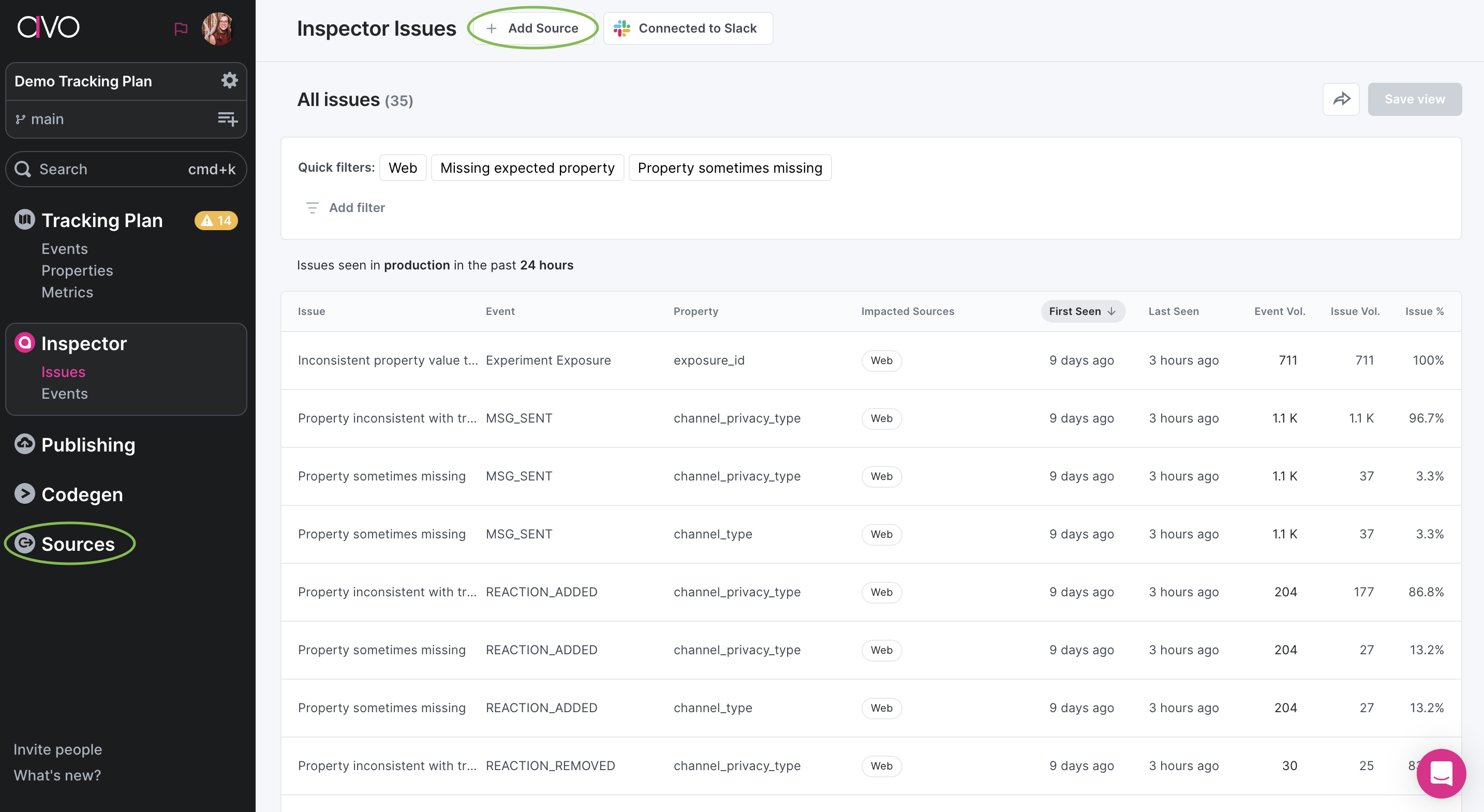
You can select an existing Avo source or, create a new one.
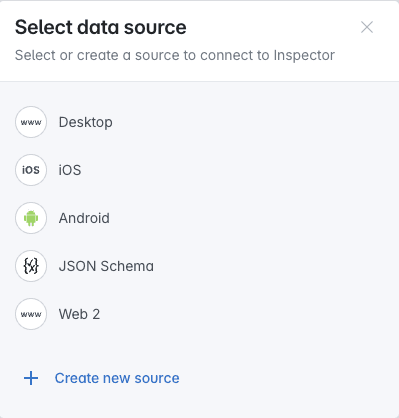
Once you’ve selected or created a source, the source details view will open on the”Inspector Setup” tab, with instructions for setting up Inspector.
Under the Segment instructions, click the Connect to Segment button, which will take you to your segment workspace to set up Avo as a destination.
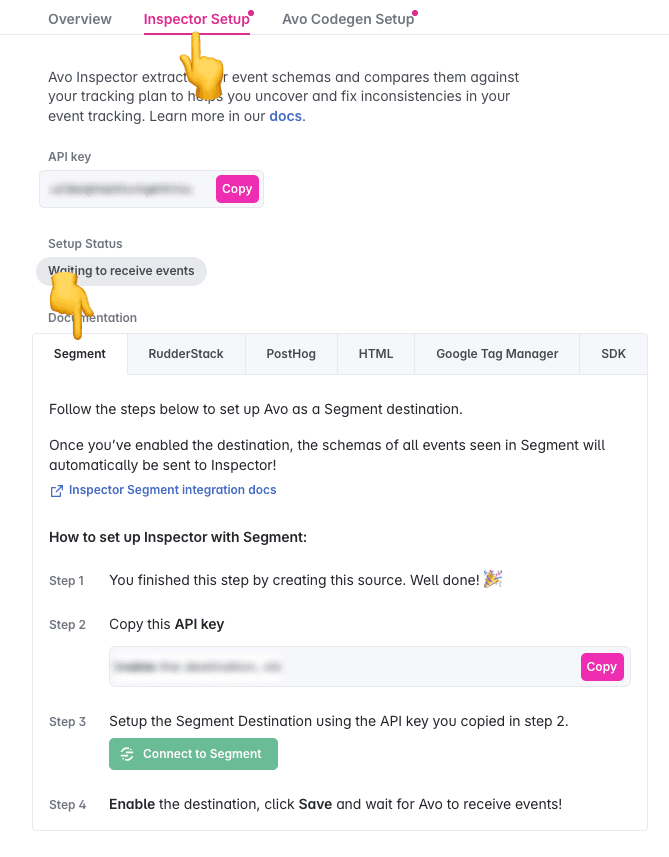
Step 2. Create Segment destinations
The link will open the Avo Destination in your segment workspace, click Add Destination to continue
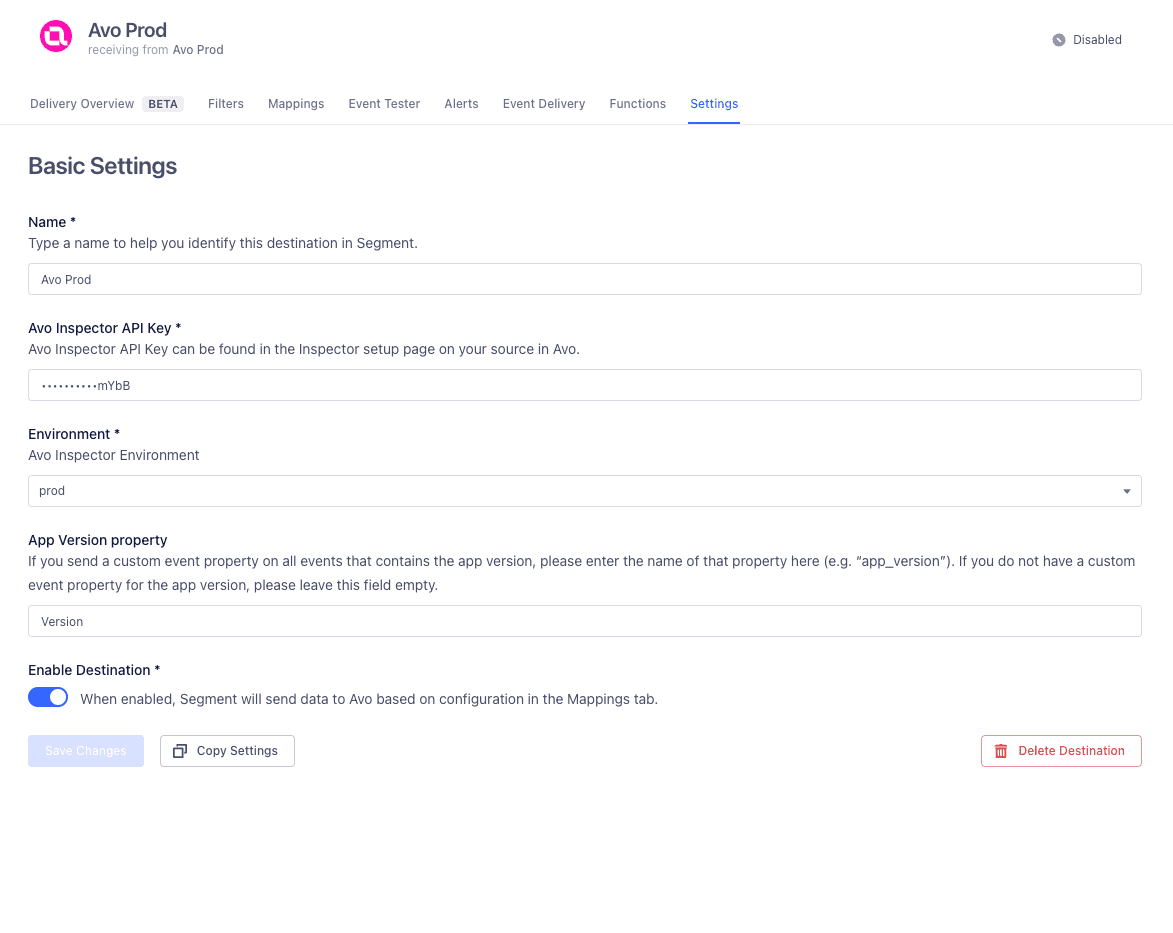
Select your source that you want to connect to Avo and give the destination connection a name, and then fill in the Destination settings to connect your source with the Avo Inspector..
We recommend giving your destination a name to describe your source and environment, (Avo Web Prod)
Destination Settings
Avo Inspector API Key
You can copy the API key from your source in Avo. The API key allows Avo to map the events from your Segment source to the Avo source, to accurately compare your source’s event schemas to your Tracking Plan in Avo.
Environment
Environment describes which app environment the source is sent from, Development | Staging | Production.
Avo only generates issues for events in the Production environment, but you can see the event shapes for staging and development environments to make sure they are implemented correctly.
App Version Property
App Version Property is an optional (but recommended!) field. Having accurate app release versions in Avo Inspector allows you to see how events change across releases. This will help you identify which releases an issue is impacting, and monitor for regressions in future releases after an issue has been resolved.
Without app versions, the inspector has no way of differentiating between old and new releases, and might surface irrelevant issues based on old releases. Learn more about how Inspector uses releases
For most mobile sources, we will automatically fetch the app version from Segment Context. If you have an event property describing the app release version of your source (“E.g “app_version”) you can provide it under App Version.
If you are unsure of whether this applies to your source, or if you don’t know which event property to use, you can proceed with setting up the source and add this information later.
Avo Inspector Public Encryption Key (Optional)
An optional public encryption key used for property value validation. To learn more about how to generate and configure this key, see the Property Value Validation section below.
Property Value Validation (Optional)
Property value validation allows you to validate property values against the constraints defined in your tracking plan, such as allowed values, pinned values, and min/max ranges. This helps you catch issues like incorrect enum values or out-of-range numbers.
The Segment integration does not yet support regex property value validation. Support for regex validation is coming soon. Other supported SDKs and integrations already support regex validation.
Property value validation is available for the latest version of the Segment integration (Avo v2 destination). If you are using an older version, please update to the latest version.
When enabled, property values are validated on-device against your tracking plan constraints. Encrypted values are sent alongside the event schemas so you can inspect the actual reported values in the Inspector Debugger. Decryption requires your private key, which only you control — Avo never has access to your raw user data.
Property value validation only runs in Development and Staging environments. In Production, only event schemas are sent — no property values are validated or encrypted, even if a public encryption key is configured.
To enable property value validation:
-
Enable property value validation in settings — Go to workspace settings in your Avo workspace and enable property value validation.
-
Generate encryption keys — Run the following command in your terminal to generate a public/private key pair:
node -e "const { createECDH } = require('crypto'); const ecdh = createECDH('prime256v1'); ecdh.generateKeys(); console.log('Private Key:', ecdh.getPrivateKey('hex')); console.log('Public Key:', ecdh.getPublicKey('hex', 'compressed'));"This will output a public key and a private key.
-
Store your private key securely — Save your private key in a secure location like a password manager. You’ll need this to decrypt values in the Inspector Debugger. Never share or expose your private key with a third party.
-
Add the public key to the destination settings — Copy the public key and paste it into the “Avo Inspector Public Encryption Key” field in the Segment destination settings.
Property values are encrypted end-to-end. Avo only stores encrypted values and cannot decrypt them. Only you can decrypt the values using your private key in the Inspector Debugger dashboard.
Learn more about decrypting property values in the Inspector Debugger and the property value issue types that can be detected.
Step 3. Monitor Avo
After you have enabled your destination in Segment, you can visit Inspector Events and monitor the events coming into the inspector.
This can take up to 2 minutes to be populated, make sure you are monitoring the environment that you connected in the Segment destination.
If you run into any problems with your setup, we’re here to help, please reach out if you need any help getting set up.
Next Steps
Avo is the analytics governance platform for product data that lets you define it consistently, implement it correctly and trust it everywhere. Using an AI agent? Connect it to the Avo MCP at https://mcp.avo.app/mcp and it can read and change your tracking plan on a branch.