Inspector Debugger
The Inspector Debugger is a real-time event stream viewer that lets you validate your tracking implementation as you develop, without waiting for events to flow through your analytics pipeline. See events as they happen, inspect their properties, and catch issues before they reach production.
If you haven’t installed Inspector yet, check out the Inspector installation overview.
When to use the Inspector Debugger
Inspector debugger is one of three views in Inspector. The other two are the the Issues view and the Events view.
The Inspector debugger is particularly useful when you need to:
- During active development - Validate tracking as you build new features, seeing events appear instantly as you interact with your application without waiting for data to flow through your analytics pipeline.
- Testing in development and staging - For QA teams and data designers to run through QA flows and verify all expected events are firing with correct properties before releasing to production.
- Understanding which events are triggered where - To see which events are triggered in which parts of the application, in which order and which properties are attached to them.
What is the Inspector Debugger?
The Inspector Debugger is a live event stream view within Avo Inspector that displays events as they’re sent from your application. It provides:
Real-time event stream
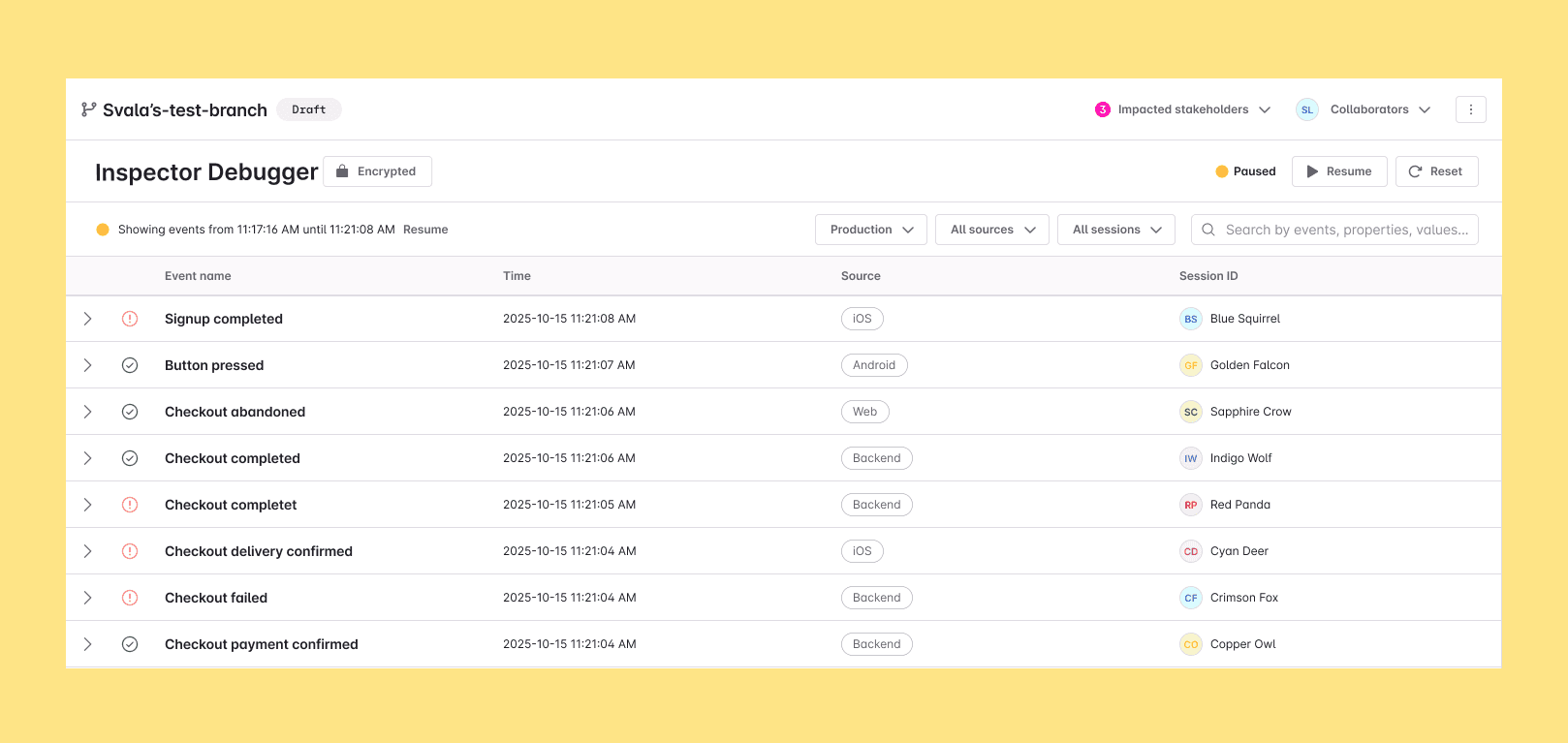
See all events flowing through Inspector in real-time, organized chronologically with:
- Event name - The name of each event as it was sent
- Validation status - Whether the event is valid according to the tracking plan on the branch that you are currently on or not
- Time - Exact timestamp when the event was sent by the application
- Environment - The environment the event was sent from (currently Development and Staging are supported)
- Source - Which platform or application sent the event (e.g., Desktop, iOS, Android, Web)
- Stream ID - A unique identifier for each user stream session, color-coded for easy visual tracking
Event details and validation
Property value validation is an advanced feature available for supported SDKs and integrations. See Enabling advanced debugger features for setup instructions.
Click any event to see:
- Complete property list - All properties sent with the event, including their types and values (if property value validation is enabled and you have decrypted the values)
- Tracking plan validation - Details on the validation status, with immediate feedback on issue types like unexpected properties, type mismatches, or missing required properties
- Event metadata - Source, version, stream session information, and timestamps
- Link to tracking plan - Quick access to view the event definition in your tracking plan
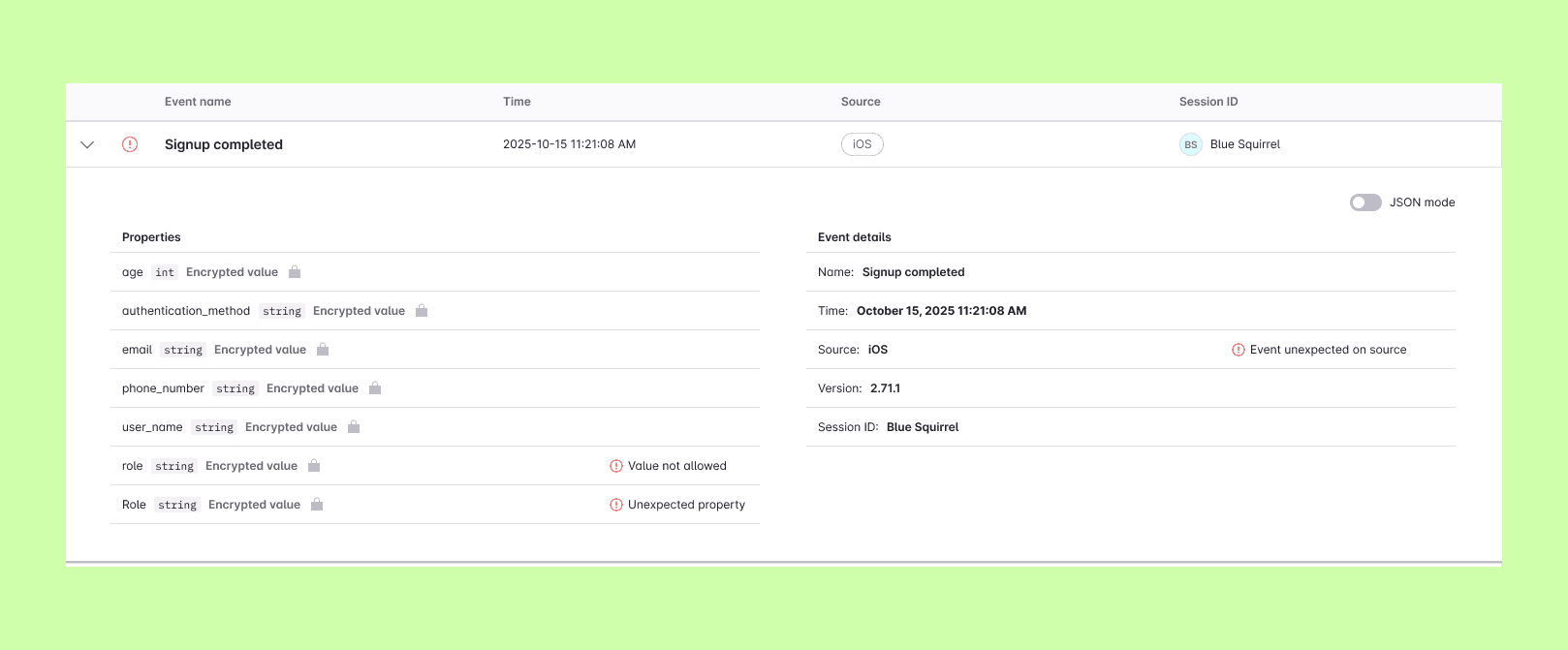
The Inspector Debugger validates events against your tracking plan in real-time and highlights issue types for the branch that you are currently on.
Matching events and variants
In some cases, an incoming event could match multiple events or variants in your tracking plan. This happens when:
- Your tracking plan uses event variants - Multiple variants of the same event exist with different property requirements
- Your tracking plan uses event name mapping - Different events in the tracking plan are mapped to the same event name
When multiple matches are possible, Avo automatically picks the most likely event, name-mapped event, or variant from the tracking plan to validate against. However, you can manually select a different match from the Validating as dropdown to validate against another event or variant from your tracking plan.
In this example, an event named MSG_SENT has two possible matches in the tracking plan. The dropdown shows the direct matches, and you can select a different variant to see how the event validates against it.
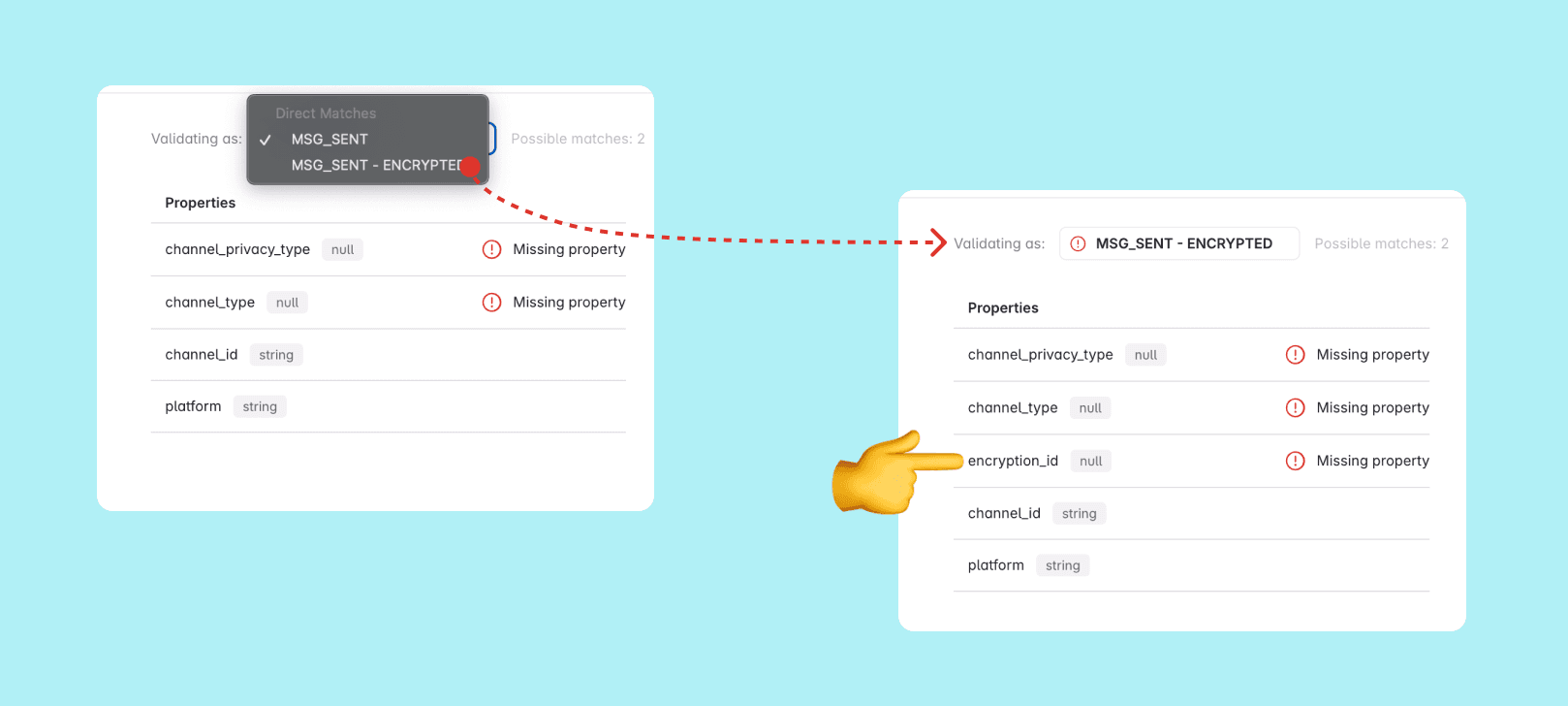
This is useful for verifying that events are being sent with the correct properties for specific variants or mapped events.
How Avo picks the most likely match
When an event matches multiple variants in the tracking plan, Avo selects the best match using a tiered scoring system. Variants are compared in priority order, only moving to the next tier if there’s a tie:
- Value validation failures - Count how many properties have values that don’t match what this variant expected. Fewer failures = better match.
- Missing expected properties - Count properties the tracking plan expects but the event doesn’t have. Fewer missing = better match.
- Unexpected properties - Count properties the event has that aren’t defined in the tracking plan for this variant. Fewer unexpected = better match.
- Type mismatches - Count properties where the type is wrong (e.g., sent string but expected number). Fewer mismatches = better match.
- Specific vs default (tiebreaker) - If all else is equal, prefer the specific variant over the default event.
How to use the Inspector Debugger
To use the Inspector Debugger, the Inspector needs to be installed in your application. See the Inspector installation overview for instructions. The debugger is currently available for development and staging environments only.
Accessing the debugger
- Navigate to Inspector in the left sidebar of your Avo workspace and click on Debugger in the Inspector submenu
- The debugger will show live events from all sources by default if you are an admin, editor or a viewer that has already activated an Implementer seat.
If you are not an admin, editor or a viewer that has already activated an Implementer seat, you will see a message telling you what you need to do to get access:
- If you’re a viewer and Implementer seats are pre-purchased - You’ll be prompted to activate an Implementer seat to start debugging
- If you’re a viewer and Implementer seats can be added - You’ll be prompted to activate an Implementer seat to start debugging (this will add to your monthly active Implementer seats count)
- If you’re a viewer and no Implementer seats are available - You’ll see a message prompting you to speak to an admin to get access to Implementer slots
- If your workspace is on an older pricing plan - You’ll see a message prompting you to reach out to an admin to renew or upgrade your plan
Filtering events
Use the filters at the top of the debugger to focus your view:
- Environment filter - Filter by development or staging environments
- Source filter - Show events from specific platforms (iOS, Android, Web, etc.)
- Stream session filter - Filter events to a specific user stream session. See Enabling advanced debugger features for setup instructions.
- Search - Search for specific event names
To find your events in the debugger while debugging:
- Filter down on the environment and source that you are triggering events from
- Look at the stream ID column to identify which stream is sending events that match the ones you are triggering from your application, based on timing and event names, and filter down to that stream session
Session filtering
Session filtering allows you to filter the event stream to show only events from a specific user session. This makes it much easier to find your own events when debugging, especially in busy development or staging environments where multiple team members may be triggering events simultaneously. See Enabling advanced debugger features for setup instructions.
Each session is identified by a unique stream ID and color-coded in the debugger for easy visual tracking. When session filtering is enabled:
- Events are grouped by session, enabling you to identify the events you are sending from your application in the debugger to QA the implementation
- You can click on any stream ID to filter the view to only show events from that session
- The filter persists as you navigate, helping you focus on a specific debugging session
Controlling the event stream
The debugger provides controls for managing the live stream:
- Pause - Pause the event stream to inspect events without new ones appearing. Useful when you need to review a specific event in detail.
- Resume - Resume the live stream to continue receiving events
- Reset - Clear all events from the current view to start fresh. Useful when you are finding your stream session or want to start fresh.
Property value validation
The Inspector Debugger supports property value validation, allowing you to see the actual values being sent with your events and verify they match your expected data. This is useful for catching property value issues where values don’t match the property constraints defined in Avo, such as allowed values and regex patterns for string properties, min and max values for numerical properties, and required or unexpected keys in object properties.
Property values are encrypted end-to-end for privacy and security. You will always see validation issues (such as values not matching allowed values or regex patterns), but the actual property values will appear as encrypted. To see the actual values that are causing issues, you need to decrypt them using your private key.
How encryption works
Property values are only sent to Avo if you provide a public encryption key to encrypt the values:
- Avo never stores actual values - Only encrypted values are stored on Avo’s servers
- Public/private key encryption - You generate a key pair using the Avo CLI. Avo uses the public key to encrypt values, and only you can decrypt them with your private key
- Avo cannot decrypt your data - The public key can only be used for encryption, not decryption
To start encrypting and validating property values, generate encryption keys and pass the public key to your SDK during initialization.
Decrypting values in the debugger
When viewing events in the Inspector Debugger, property values will show as “Encrypted value” by default. You will always be able to see if there is an issue related to the value, but to view the actual values:
- Click the Encrypted button in the debugger header
- Enter your 64-character hex private key in the dialog
- Optionally save the key using a password manager with a browser extension (if it’s not already saved) or your browser’s built-in password manager to avoid having to enter it every time
- Click Decrypt to reveal the actual property values

Once decrypted, you can see the actual values sent with each event and identify issues like incorrect data or unexpected values.
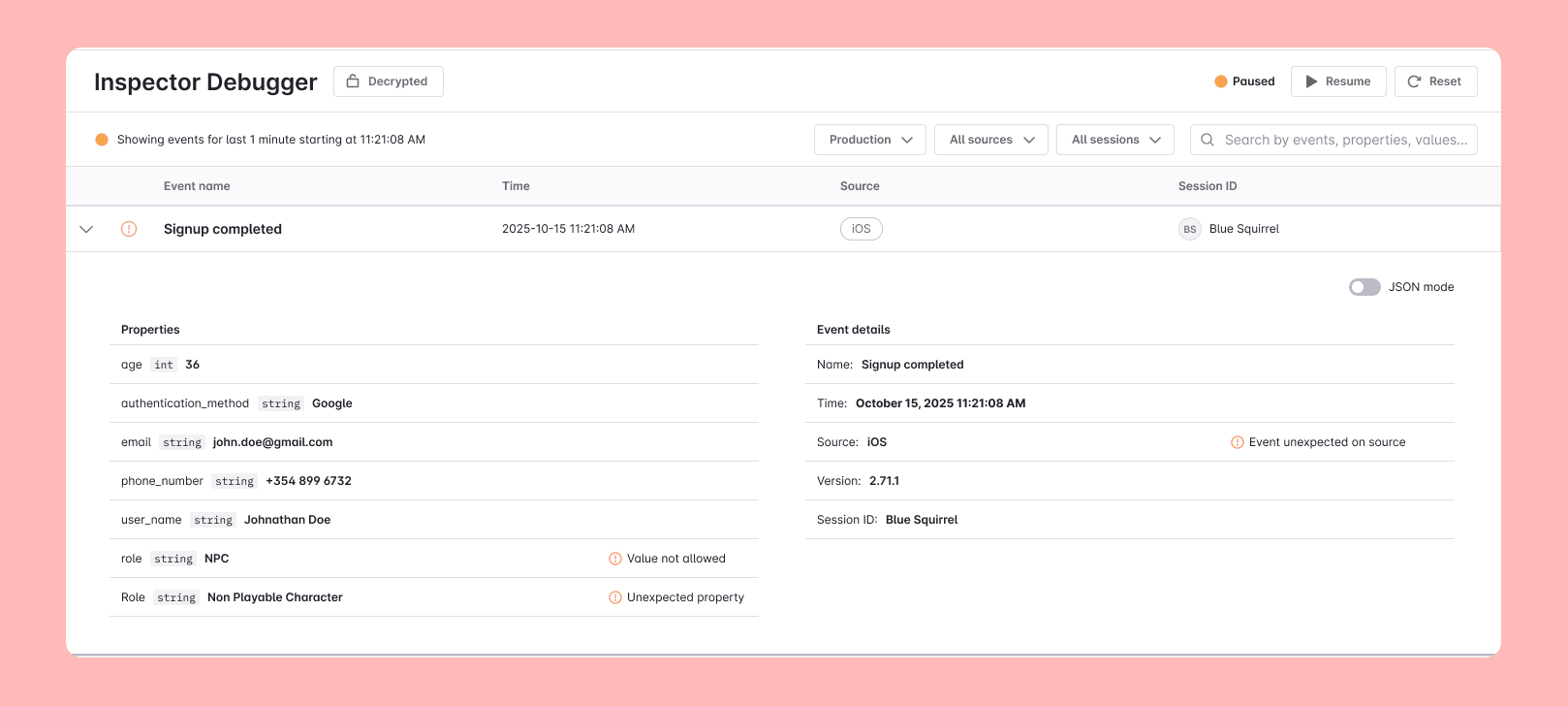
Your private key is only stored locally in the application during your session and is never sent to Avo’s servers. Decryption happens entirely on your machine.
Enabling advanced debugger features
The Inspector Debugger offers advanced features when using a supported SDK or integration version.
To enable them you have to install or update the supported SDK or integration to the minimum version listed in the supported SDKs and integrations table below.
Each feature has different setup requirements:
- Session filtering - Filter the event stream to a specific user session, making it easier to find and debug your own events. Works automatically with supported SDK versions — no additional settings required.
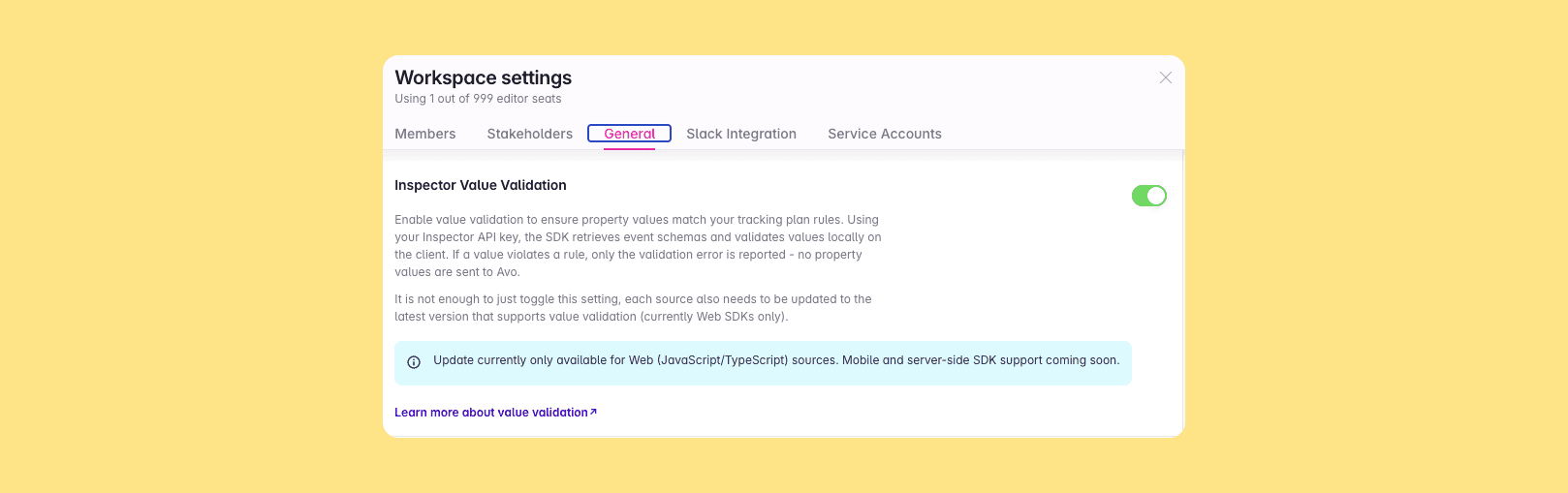
- Property value validation - See validation issues for property values that don’t match the constraints defined in your tracking plan, such as allowed values, regex patterns, min/max values, and object key requirements. To enable it, you need to:
- Enable property value validation - Go to Inspector settings in your Avo workspace and enable the Property value validation setting.
- (Optional) Generate encryption keys - To see the actual property values (not just validation issues), generate a key pair and pass the public key to your SDK.
Generating encryption keys
By default, property values appear encrypted in the debugger. You will always see validation issues, but to see the actual values that are causing issues, you need to generate a key pair.
Run the following command in your terminal:
node -e "const { createECDH } = require('crypto'); const ecdh = createECDH('prime256v1'); ecdh.generateKeys(); console.log('Private Key:', ecdh.getPrivateKey('hex')); console.log('Public Key:', ecdh.getPublicKey('hex', 'compressed'));"Then:
- Pass the public key to your SDK - Add the public key when initializing the Inspector SDK or configuring your integration. See the setup guide for your platform.
- Store your private key securely - Save it in a password manager. You’ll need it to decrypt values in the debugger. Never share your private key.
Supported SDKs and integrations
Property value validation and session filtering are currently supported on:
| Platform | Package Manager | Min Version | Languages |
|---|---|---|---|
| Web | npm / yarn | 3.0.0+ | JavaScript, TypeScript, ReScript |
| SSR Web | npm / yarn | 2.1.0+ | JavaScript, TypeScript |
| iOS | CocoaPods | 3.0.0+ | Swift, Objective-C |
| iOS | SPM | 4.0.0+ | Swift, Objective-C |
| React Native | npm / yarn | 1.4.0+ | JavaScript, TypeScript |
| Node.js | npm / yarn | 1.2.0+ | JavaScript, TypeScript |
| Android | JitPack / Maven | 2.4.0+ | Kotlin, Java |
| Segment | Integration | v2 | All sources |
| GTM Web (client) | Template Gallery | inspector-gtm-v2.min.js | JavaScript |
| GTM Web (recipe) | GitHub | v2+ | JavaScript |
| GTM Server | Template Gallery | latest | Sandboxed JS |
To get access to all the features, including stream ID, client-side value validation, and property value report, update to the minimum version listed above. Support for other platforms is coming soon. Reach out to support if you need these features for other platforms.
The Segment integration does not yet support regex property value validation. Support for regex validation is coming soon. All other supported SDKs and integrations listed above already support regex validation.
Troubleshooting
Not seeing events in the debugger
If events aren’t appearing in the debugger:
- Verify Inspector is installed - Check that you’ve installed Inspector for your platform
- Check your filters - Make sure environment, source and event name filters aren’t excluding your events
- Check your API key - Verify you’re using the correct Avo API key in your Inspector configuration
Events appear but have many issues
If you’re seeing unexpected validation issues on events you might be on the wrong branch.
- Check your branch - Verify you’re on the correct branch that you are expecting to see events from. Switch branches in the top of the left sidebar of your Avo workspace.
- Check your tracking plan - Verify your tracking plan definitions match the event shapes that you are seeing in the debugger
- Check the matched variant - If you’re using event variants or name mapping, verify that the debugger matched the correct variant. You can select a different variant from the “Validating as” dropdown to see how your event validates against other options.
What’s next?
- Learn about the Issues view to review and manage tracking plan violations
- Learn about finding and fixing issues in Inspector
- Learn about issue types in Inspector
Avo is the analytics governance platform for product data that lets you define it consistently, implement it correctly and trust it everywhere. Using an AI agent? Connect it to the Avo MCP at https://mcp.avo.app/mcp and it can read and change your tracking plan on a branch.