Implement analytics events
Avo provides a set of developer tools to make it faster and less error prone to implement tracking code. Avo Codegen, our type safe analytics wrappers, are one of those tools. Using Avo’s developer tools is optional, but something we highly recommend.
In this guide we’ll cover how to implement analytics events with and without using Avo’s developer tools.
Using journeys as implementation guides
If a journey was created during the planning phase, use Developer mode in the journey builder to implement tracking. Developer mode can be accessed through the toolbar in the journey builder and provides everything developers need to implement tracking directly from the journey context.
Developer mode
Developer mode opens a sidebar with a list of all triggers for each journey step in the journey. Every trigger includes auto-generated code snippets and prompts for coding agents, tailored to the property conditions defined for that scenario. Developers get:
- Context from the design: Annotated images connected to the triggers with events that show exactly which event should be triggered and where
- Code snippets based on property conditions: Clear indication of which properties must be sent and which are optional, plus allowed values and notes about the property or the value
- Implementation prompts: Language-specific prompts for coding agents to help implement the tracking plan changes, for either Codegen or existing implementation methods
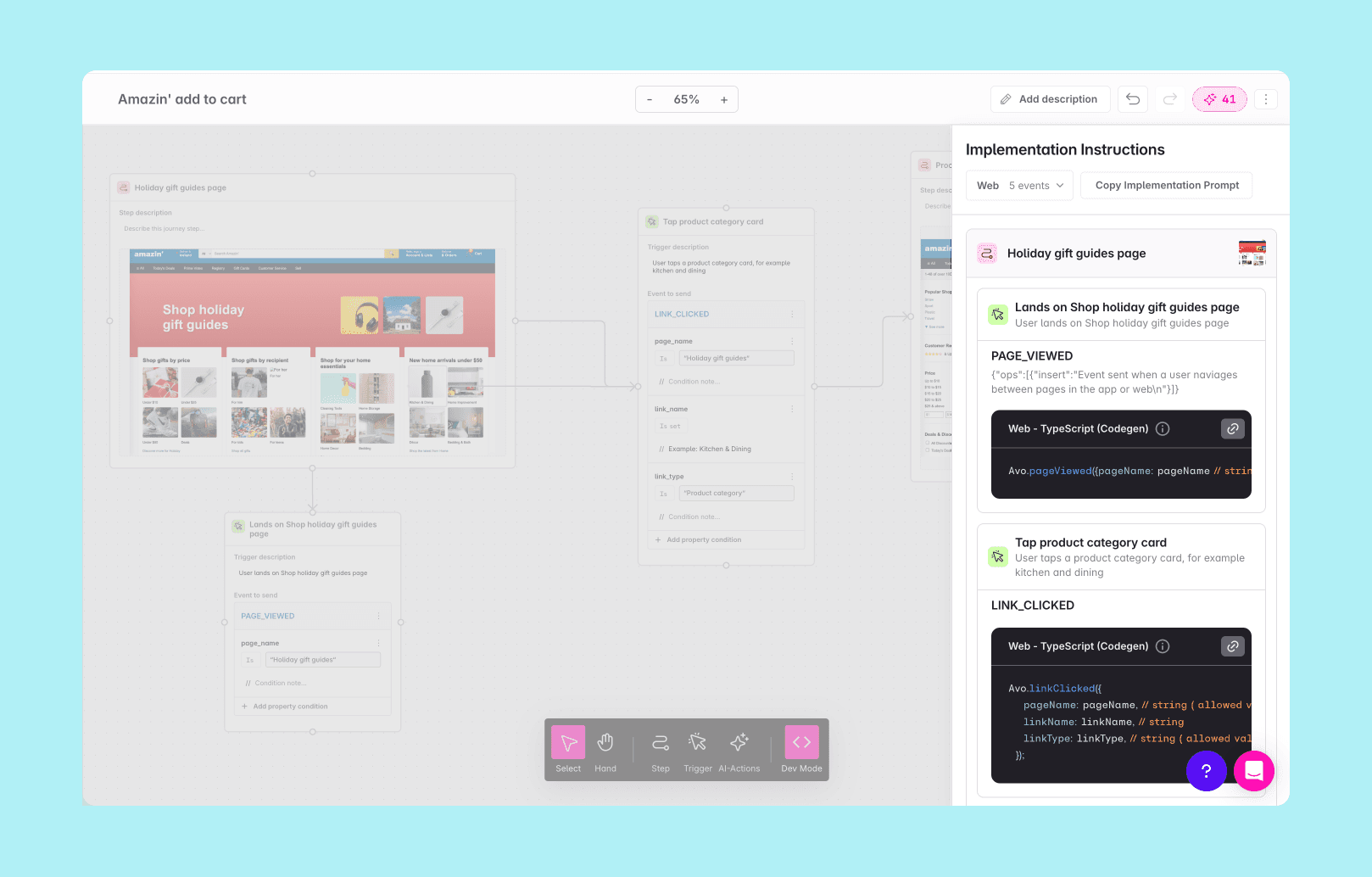
Use Developer mode together with the Branch Code Changes screen for a complete implementation workflow.
Implementing without using Avo’s developer tools
You can continue implementing your tracking code like you are used to using analytics SDKs from analytics platforms (like Mixpanel, PostHog or Amplitude), SDKs from CDPs (like RudderStack, Segment or mParticle), or using internal built SDKs or APIs.
A typical implementation workflow looks like this:
- Review the changes - Open the journey in the journey builder and enable Developer mode to review the code changes required to implement the journey.
- Open a git branch - Create a branch or use an existing branch with the product update that you are working on in your product’s codebase to implement your analytics tracking changes.
- Implement the changes - Use the code snippets and implementation prompts from Developer mode as a task list and template for implementation, with the journey as visual context for where each event belongs in the user flow.

Implementing with Avo Codegen
Avo Codegen produces type safe analytics wrappers that are code generated based on your tracking plan. Designed to speed up the tracking code implementation, while also making it more reliable with type-safety.
Learn more about Avo’s developer tools in Avo 101 for developers:
For teams that are using Avo Codegen to implement their tracking code, the typical implementation workflow looks like this:
- Review the changes - Open the journey in the journey builder and enable Developer mode to review the code changes required to implement the journey.
- Open a git branch - Create a branch or use an existing branch with the product update that you are working on in your product’s codebase to implement your analytics tracking changes.
- Pull the updated Codegen - Use the Avo CLI to pull the updated code from the Avo branch you are implementing. You can find the Avo CLI command for each source in the top right corner of the branch review screen under “Branch Implementation”.
- Implement the changes - Use the type-safe functions provided by Avo Codegen to implement your events in your source code. Developer mode provides Codegen-specific code snippets and implementation prompts for each trigger, with the journey as visual context for where each event belongs in the user flow.
If Avo Codegen haven’t been set up in your project yet, learn how to set them up in our Avo Codegen quickstart guide:

What’s next?
Avo is the analytics governance platform for product data that lets you define it consistently, implement it correctly and trust it everywhere. Using an AI agent? Connect it to the Avo MCP at https://mcp.avo.app/mcp and it can read and change your tracking plan on a branch.