Custom fields
Attach structured, admin-defined metadata to the items in your tracking plan
Custom fields are in beta. Reach out at support@avo.app to get access and provide feedback.
Custom fields let workspace admins define structured metadata fields that the workspace attaches to tracking plan items, beyond Avo’s built-in fields like name, description, tags and categories. Typical examples are “Priority”, “Lifecycle Stage” and “Surface”.
Custom fields apply to events and properties. Each field can be scoped to either or both.
Managing custom field definitions
Custom field definitions are managed by workspace admins on the Custom Fields tab of the Governance page.
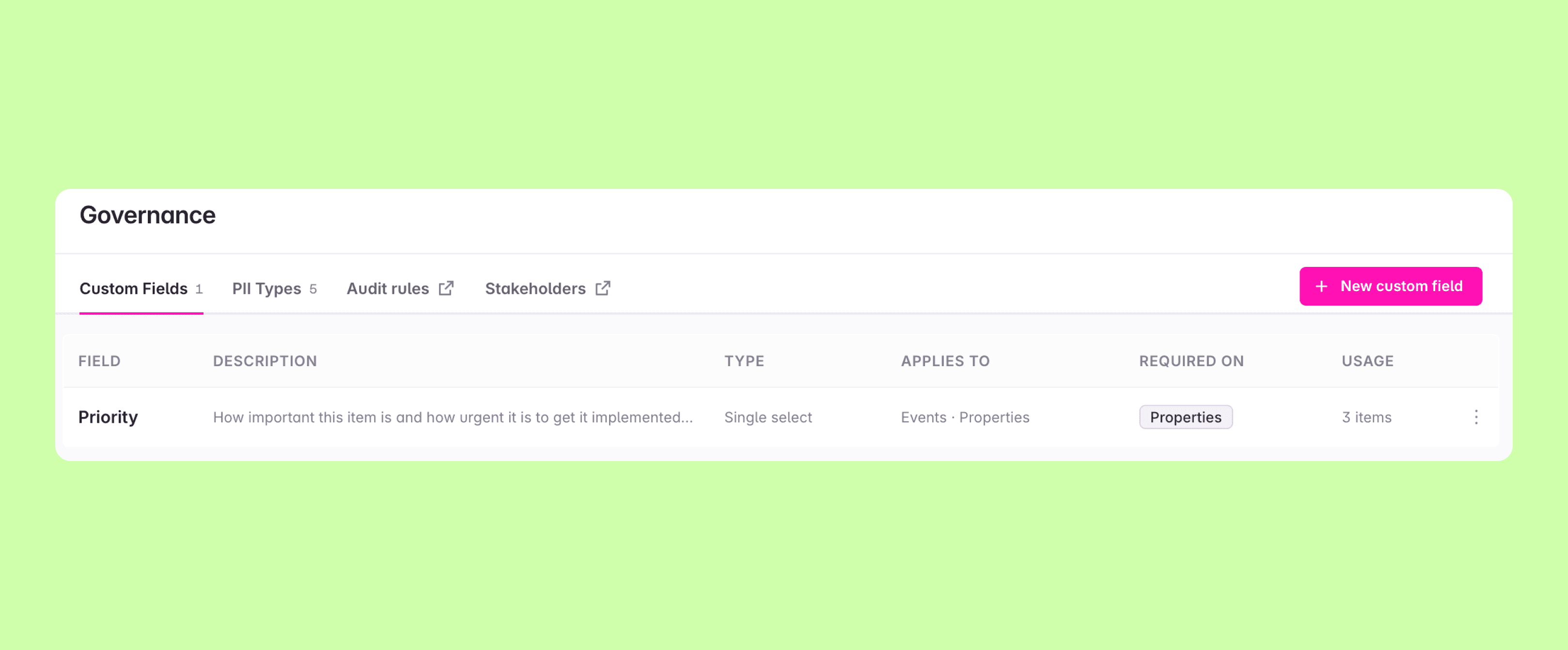
To create a field, click + New custom field and define:
- Name and an optional description
- Type – the field type (see Field types below)
- Allowed values – for single and multi select fields, the list of values editors can pick from
- Scopes – whether the field applies to events and/or properties
- Required toggles – per scope, whether the field is required
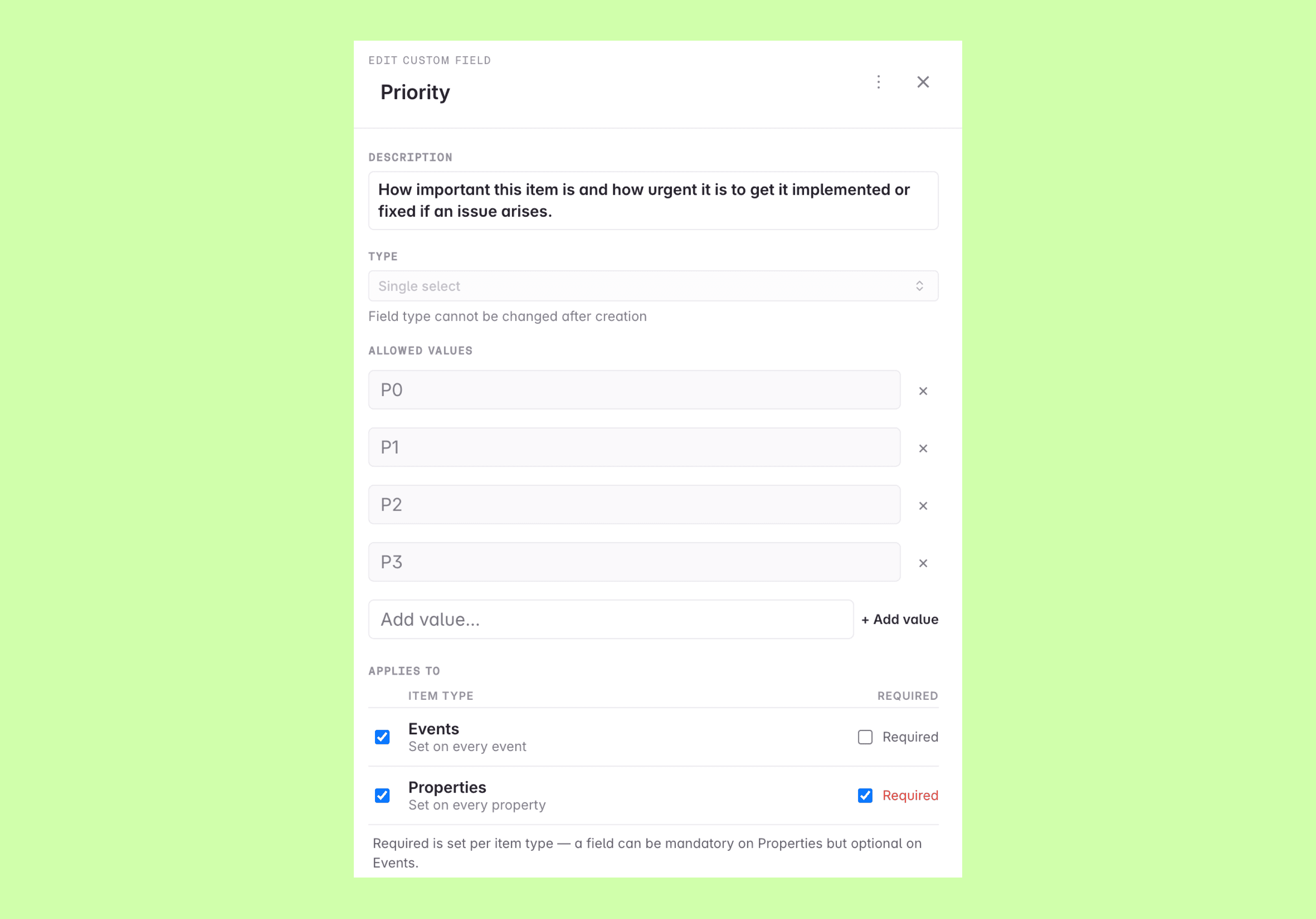
Like other governance changes, creating and editing custom field definitions happens on a branch and goes through the normal branch review and merge workflow.
Field types
Each custom field has one of the following types. The type is immutable after creation — to change the type of a field you archive it and create a new one.
- Text: A free-form text input
- Single select: Pick one value from an admin-defined list of allowed values
- Multi select: Pick one or more values from an admin-defined list of allowed values
- Boolean: A true/false value
- JSON: An arbitrary JSON value, for structured metadata that doesn’t fit the other types
- Array of strings: A free-form list of string values — unlike Multi select, the values aren’t constrained to a predefined list
Only Single select and Multi select use allowed values, and they must have at least one. If an allowed value is removed later, existing values on items are preserved but shown as deprecated.
Required fields
The “required” toggle is set per scope — for example a field can be required on events but optional on properties. Required fields are enforced through the audit rules “All events and variants have required custom fields” and “All properties have required custom fields”: missing values surface as audit issues and, when the rules are enforced, can block branch merging the same way other audit rules do.
Archiving and limits
- Archiving: Archiving a field hides the field and its values without deleting them. Unarchiving restores both the field and the values that were set before it was archived.
- Limits: A workspace can have up to 50 active custom fields. Archived fields don’t count towards the limit.
Using custom fields in the tracking plan
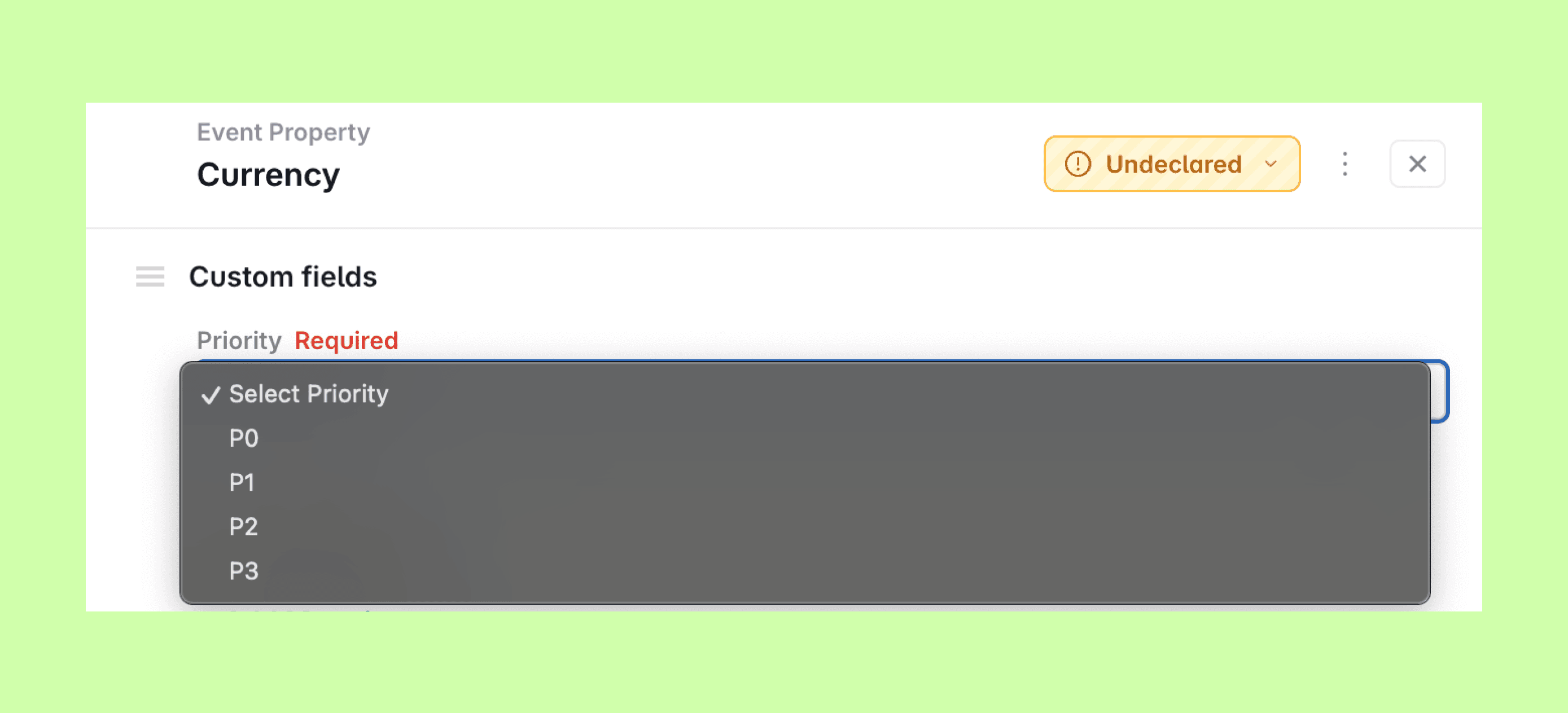
Editors fill in custom fields in a Custom Fields section on the event and property detail views, on a branch. The input matches the field type: a text input for Text fields, a dropdown for Single select fields and a tag-style multi-select for Multi select fields.
Viewing custom field values
Item details
Custom field values are shown in the Custom Fields section on the event and property detail views, in the same order the fields appear on the Governance Custom Fields tab. Event variants show the values inherited from their base event.
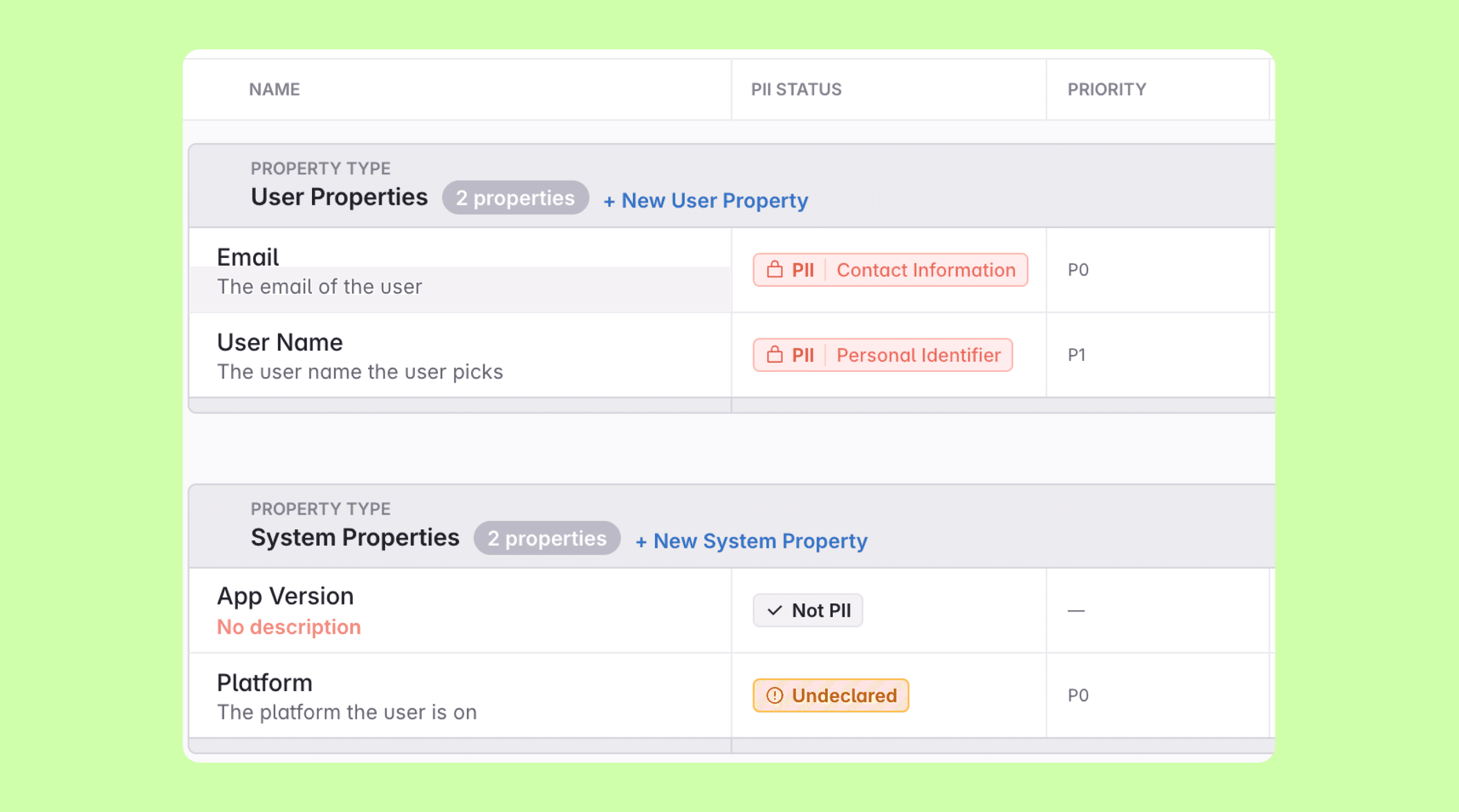
Events and Properties views
The Events and Properties views have a column per custom field scoped to that item type. To add a custom field column to your view, click Customize and enable it. You can also move the column up the list in the customize menu to place it closer to the front of the table, where it’s more visible.
Both views can also be filtered by custom field values — for example to see all P0 events, or every property that’s missing a value for a required field.
Custom field values in branch diffs and exports
- Branch diffs: Added, changed and cleared values show up in the branch changes view
- CSV export: One column per custom field in the CSV export. Multi select values are semicolon-separated
- JSON Schema export: A
customFieldsobject on events and properties in the JSON Schema export, mapping each field name to its value (encoded according to the field type)
Importing custom field values
The Import API and JSON Schema import accept custom field values (the customFields object) for existing field definitions. Unknown field names are skipped with warnings — importing never auto-creates custom field definitions.
Avo is the analytics governance platform for product data that lets you define it consistently, implement it correctly and trust it everywhere. Using an AI agent? Connect it to the Avo MCP at https://mcp.avo.app/mcp and it can read and change your tracking plan on a branch.