Tagging PII
Classify which properties in your tracking plan carry personally identifiable information
PII tagging is in beta. Reach out at support@avo.app to get access and provide feedback.
With PII tagging, your workspace classifies which properties carry personally identifiable information using an admin-defined taxonomy. That makes it visible at a glance which events and properties touch sensitive data — in the tracking plan, in branch reviews and in exports to downstream tools.
PII Types
PII Types are workspace-defined classifications, for example “Personal Identifier” or “Contact Information”. They are managed by workspace admins on the PII Types tab of the Governance page via + New PII type.
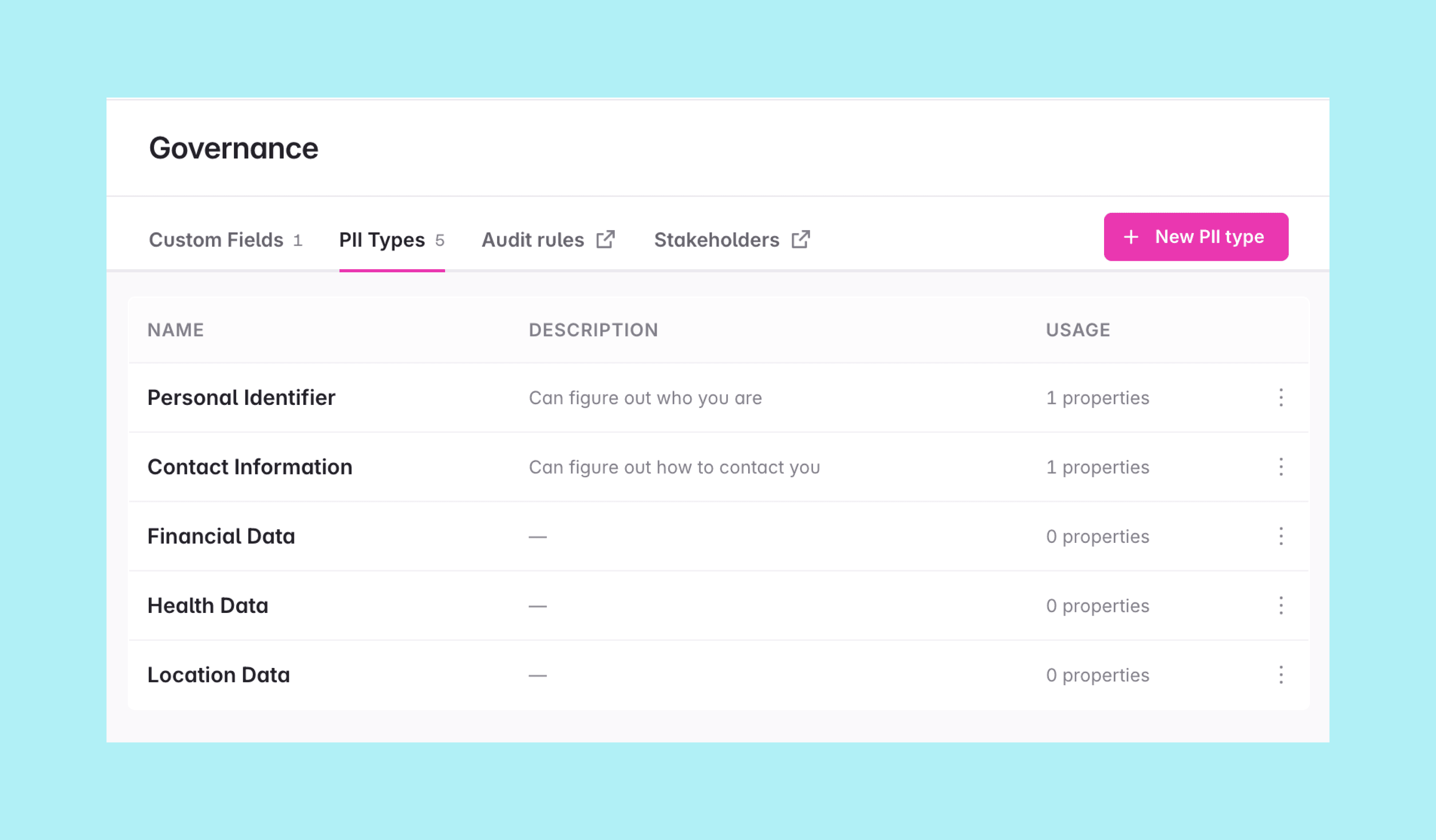
To get started quickly, click “Use Avo’s defaults” to add Avo’s default PII types:
- Personal Identifier
- Contact Information
- Financial Data
- Health Data
- Location Data
The defaults behave like any other PII type once added — you can edit their names and descriptions, and archive the ones that don’t fit your workspace’s taxonomy. Opening a PII type also shows which properties use it.
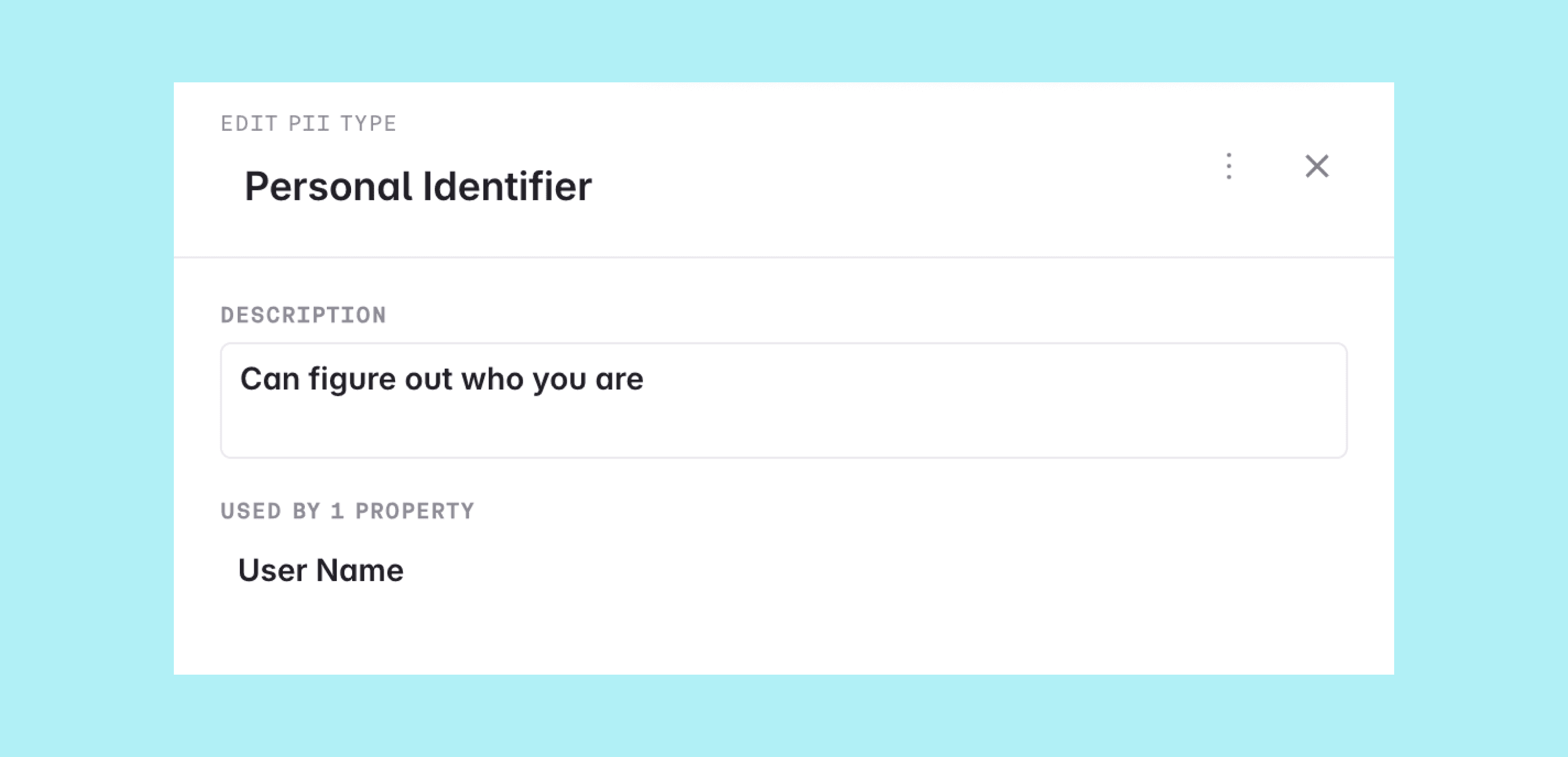
A property pointing at an archived PII type shows the type name with an “(archived)” suffix, so existing classifications stay visible even after the type is retired.
Like other governance changes, managing PII types and setting PII status on properties happens on a branch and goes through the normal branch review and merge workflow.
Property PII status
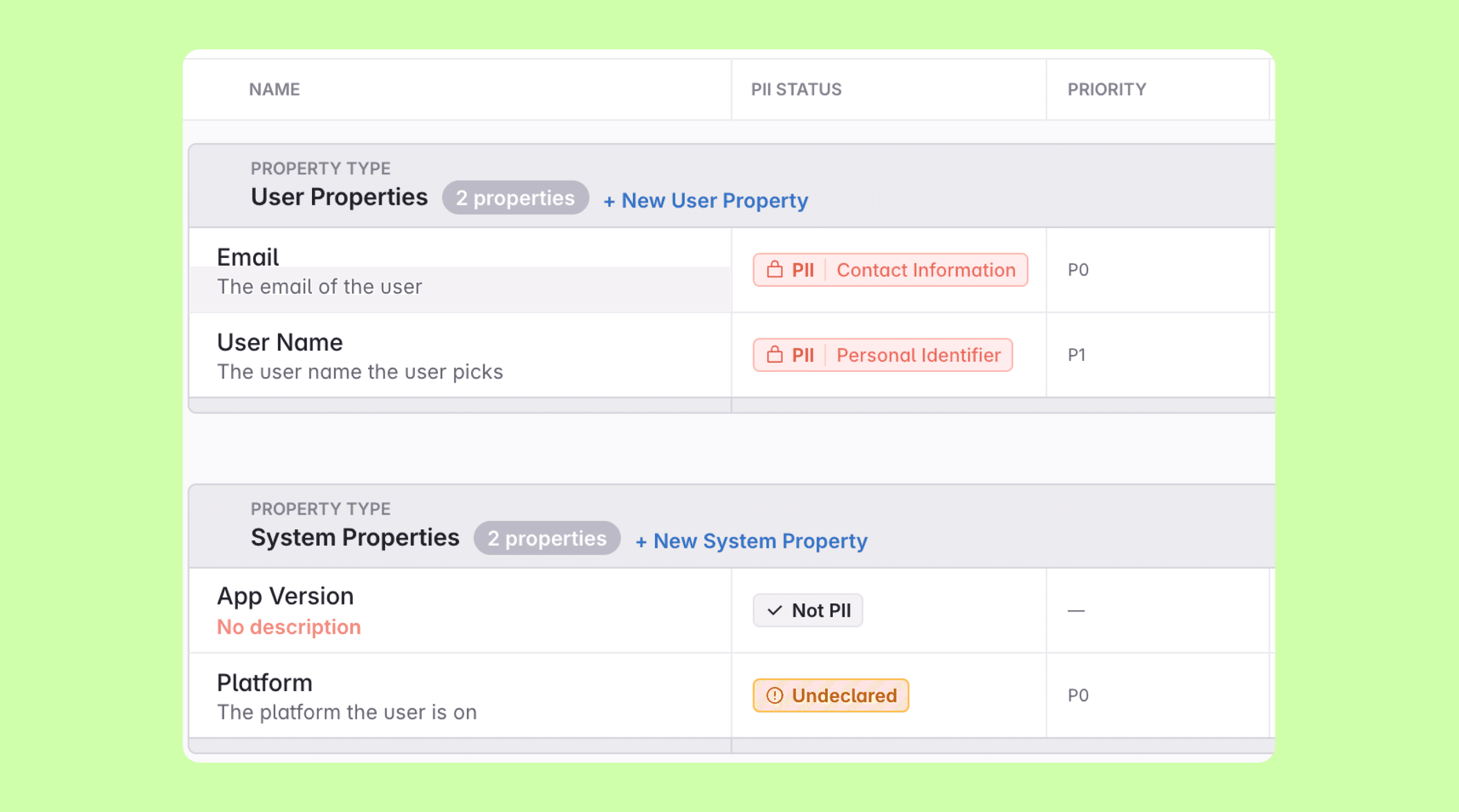
Every property has one of three PII statuses:
- Undeclared: Nobody has reviewed the property yet. This is the default for every property.
- Not PII: The property has been explicitly reviewed and marked as non-sensitive.
- PII: The property is sensitive, with a PII type selected to say what kind.
The distinction between Undeclared and Not PII is what makes the status useful: Undeclared doesn’t mean a property is safe, it means nobody has made the call yet. That’s exactly what audit enforcement keys on — once every property is either Not PII or PII, you know the whole tracking plan has been reviewed.
Setting the PII status
To set the PII status of a property, click the PII pill in the property detail header and choose Not PII, Undeclared or PII. When choosing PII, you also pick which PII type applies.
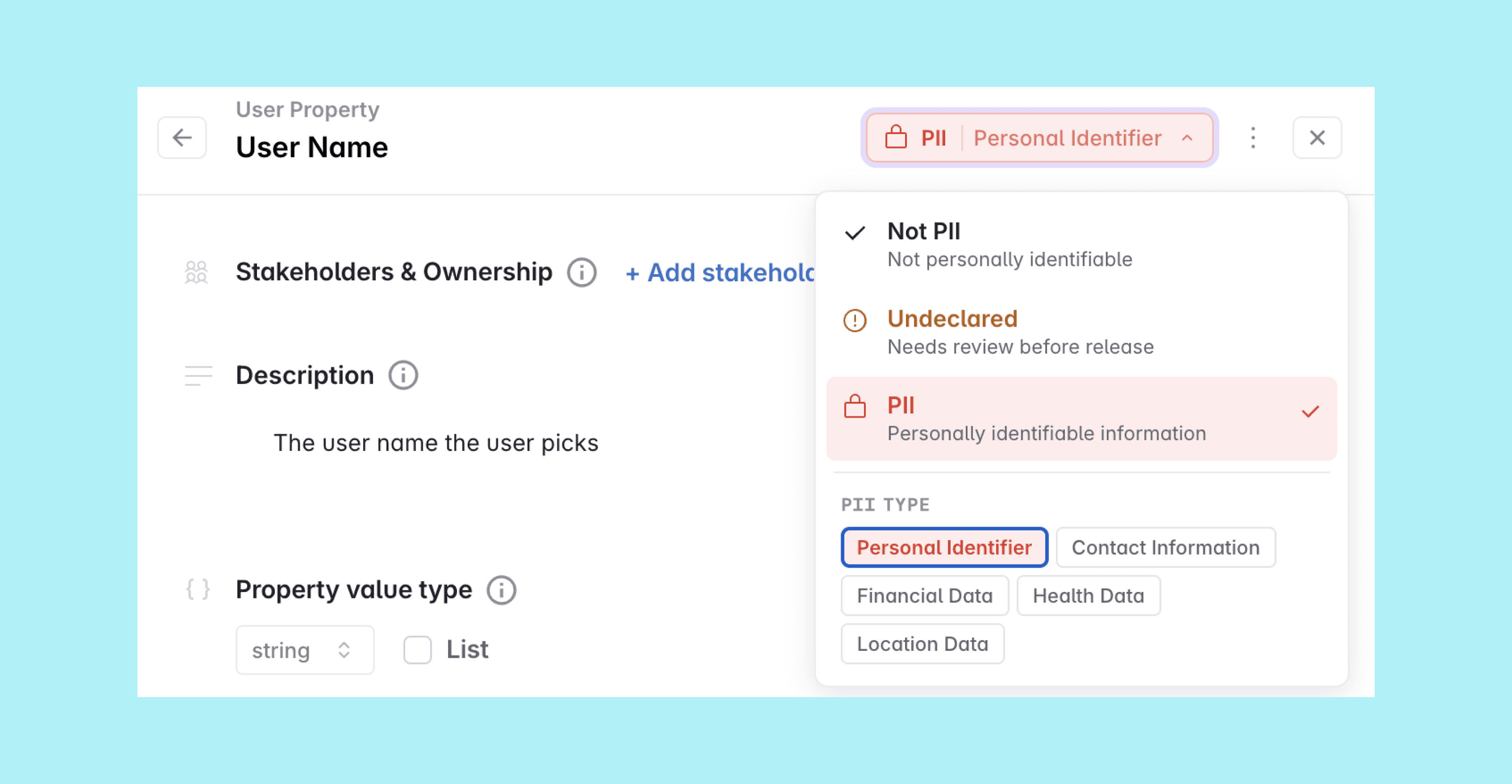
If the workspace doesn’t have any PII types yet, the UI prompts you to ask a workspace admin to add some on the Governance page.
Viewing the PII status
Event details
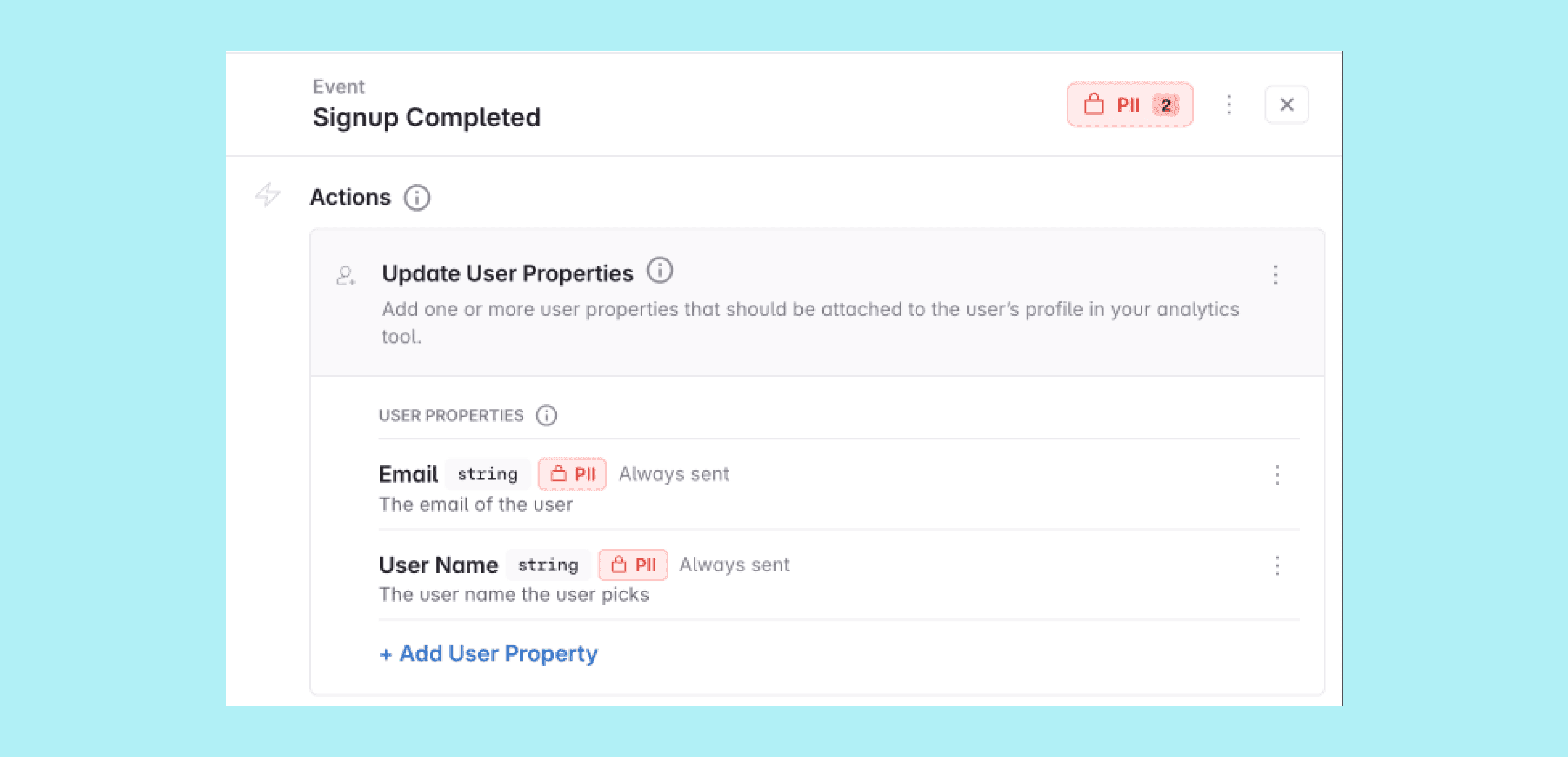
Events automatically show a Contains PII indicator with a count of PII properties. The count is computed from the event’s properties, including properties that come in through property bundles. The event also gets a PII summary listing those properties and their PII types, so reviewers can see exactly what sensitive data an event carries without opening each property.
Events view
The Events view has a “Contains PII” column, plus a “Contains PII” filter to focus on the events that carry sensitive data. To add the column to your view, click Customize and enable it. You can also move the column up the list in the customize menu to place it closer to the front of the table, where it’s more visible.
Properties view
The Properties view has a “PII Status” column showing each property’s declared status, plus “PII Status” and “PII Type” filters. Like on the Events view, click Customize to add the column to your view and move it up the list for better visibility.
The PII Status filter is especially handy when classifying an existing tracking plan: filter to Undeclared and work through the list until nothing is left.
PII status in branch diffs and exports
- Branch diffs: PII status changes show up in the branch changes view
- CSV export: “PII” and “PII Type” columns in the CSV export
- JSON Schema export: A
piiobject (isPiiand, for PII properties,piiType) on properties, and apiiobject withcontainsPiiand the list ofpiiTypeson events, in the JSON Schema export
The Import API and JSON Schema import round-trip the property-level pii object the same way as custom fields: values referencing existing PII types are applied, unknown types are skipped with warnings and never auto-created.
Enforcing PII declarations with the audit
The audit rule “All properties have PII declared” can require every property to be either Not PII or PII — in other words, no Undeclared properties. Like other audit rules it surfaces issues in the branch and tracking plan audits and can optionally block branch merging, depending on your workspace’s audit configuration. Enforced in the branch audit, it guarantees every new property gets a PII declaration before it goes live.
Looping in a stakeholder on PII changes
On the Enterprise plan, you can have a stakeholder team automatically added as a required reviewer whenever a branch changes the workspace’s PII data flow — for example a new PII property, a property toggled from Not PII to PII, or PII sent to a new destination. This is a reliable way to bring a privacy or data-governance team into every change that touches sensitive data. Enable it with the “Impacted by PII changes” setting in the stakeholder team settings.
Avo is the analytics governance platform for product data that lets you define it consistently, implement it correctly and trust it everywhere. Using an AI agent? Connect it to the Avo MCP at https://mcp.avo.app/mcp and it can read and change your tracking plan on a branch.